Quick answer
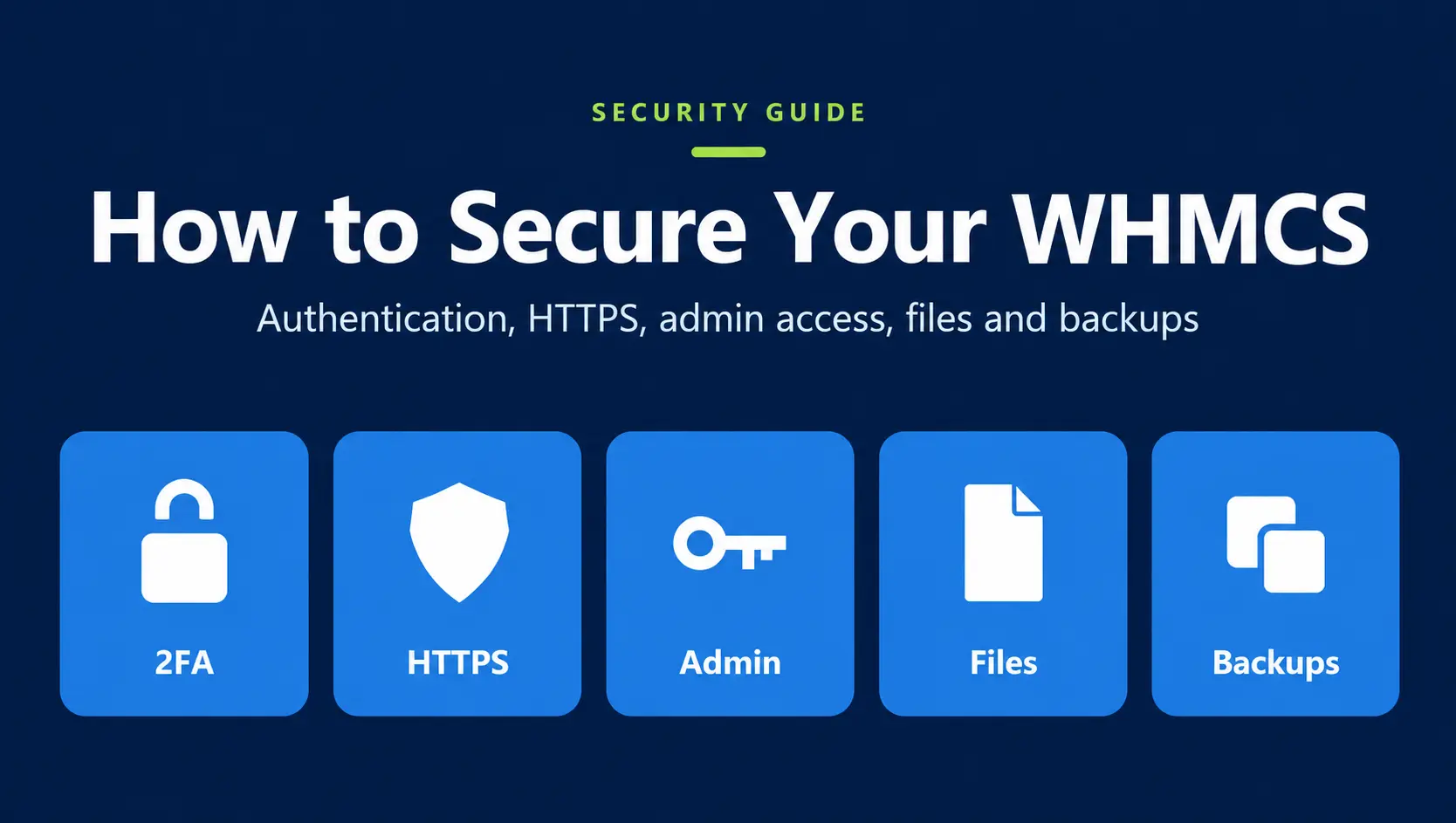
To secure your WHMCS installation, combine strong authentication, HTTPS, restricted administrator access, protected files and directories, database security, server hardening, regular updates, trusted software, secure backups and monitoring.
WHMCS sits at the centre of many hosting businesses. It manages customer accounts, invoices, payments, domains, hosting services, support tickets, automation and product provisioning. If you need a short primer first, see what WHMCS is and how it is used.
That workload is also why the install holds sensitive information. Customer records, billing history, payment configuration, API credentials and server integrations all live in one place.
How to secure WHMCS is not a single toggle. A self-hosted installation needs several layers: authentication, Admin Area restrictions, HTTPS, file protection, database controls, server hardening, current software, backups and monitoring. This guide covers those layers and a checklist you can run against a live system.
Why WHMCS security matters
A compromised WHMCS installation can reach further than the login page. Depending on the permissions and integrations on that system, an attacker may be able to read customer information, invoices and tickets, inspect payment or server settings, or use API credentials that talk to registrars, gateways and hypervisors.
Problems usually come from ordinary gaps rather than one dramatic exploit:
- Reused or shared administrator passwords
- Weak customer passwords and no second factor
- Phishing against staff or clients
- Outdated WHMCS, PHP or modules
- Nulled themes or addons
- World-readable configuration files
- Open database or SSH access
- Untrusted integrations
- Backups that only exist on the same server
The aim is to shrink that attack surface. Protect the Admin Area, the client login, the files WHMCS writes, the database, and the server that hosts them.
How to secure your WHMCS installation
Use this WHMCS security checklist as a review, not as a one-off install script. Tick what is already in place, then work through the gaps in the sections below.
Authentication✔ Strong unique passwords ✔ 2FA for administrators ✔ Passkeys where they fit ✔ Individual staff accounts ✔ Password recovery reviewed |
Application✔ HTTPS everywhere ✔ Admin directory renamed ✔ Admin access restricted ✔ CAPTCHA where it helps ✔ Security headers tested |
Files and directories✔ configuration.php protected ✔ Writable directories secured ✔ Cron outside the web root ✔ Vendor directory blocked ✔ Install files removed |
Infrastructure✔ Firewall and SSH locked down ✔ Supported PHP and OS ✔ Dedicated database user ✔ Remote DB access limited ✔ Control panel access secured |
Software✔ WHMCS on a supported release ✔ Modules and themes updated ✔ Unused addons removed ✔ No nulled software ✔ Least privilege for staff |
Recovery✔ Automated backups ✔ Off-server storage ✔ Restore tested ✔ Login and file monitoring ✔ Review after major changes |
1. Secure WHMCS administrator accounts
The Admin Area is one of the most sensitive parts of the installation. An administrator may be able to open customer records, invoices, products, payment settings, server modules, tickets and system configuration.
Give every staff member a unique password that is not reused on email, the hosting panel or anywhere else. Do not share one WHMCS admin login across the team. Shared accounts make it hard to see who changed a gateway, created a refund or added a module, and they stay valid after someone leaves.
Create individual admin accounts and grant only the permissions that job needs. When an employee or contractor leaves, disable the account the same day and review any API keys or server logins they used.
|
Best Practice One person, one admin account. Least privilege on that account. Remove access as part of offboarding, not weeks later. |
2. Enable two-factor authentication
A password should not be the only check on an administrator account. WHMCS two-factor authentication (2FA) asks for a second proof after the password, usually a code from an authenticator app or another supported method.
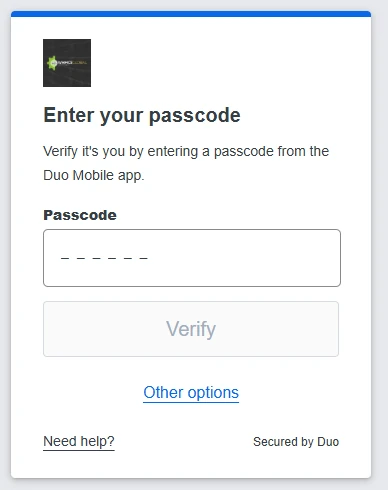
WHMCS includes 2FA for administrators and clients. Depending on your version, available methods can include Time-Based Tokens, Duo Security and YubiKey. Confirm the current options in your Admin Area and in the WHMCS documentation for the release you run.
For a hosting business, requiring 2FA on every administrator account is one of the first changes worth making. Consider it for customers who manage important services as well.
|
Duo Security asks for a passcode from the Duo Mobile app. This is the Duo prompt, not the WHMCS Admin Area. |
Practical 2FA recommendations
- Require 2FA for all administrator accounts.
- Do not share authenticator apps or backup codes between staff.
- Store recovery methods in a controlled place, not in a shared inbox.
- Review admin accounts regularly and remove leavers.
- Treat passkeys as a stronger option where you can support them.
3. Consider passkeys for WHMCS
Passkeys are a passwordless method built on WebAuthn and FIDO2. The credential stays on the device or password manager and is tied to the website where it was created. That design resists many phishing attacks that still collect passwords and one-time codes.
On a supported device, a user can confirm with Face ID, Touch ID, Windows Hello, a device PIN or a hardware security key. WHMCS does not have to invent this; the browser and operating system already implement the check.
|
Security tip Passkeys reduce password reuse and phishing. They do not replace HTTPS, file permissions, updates or backups. |
Passkey WHMCS Module
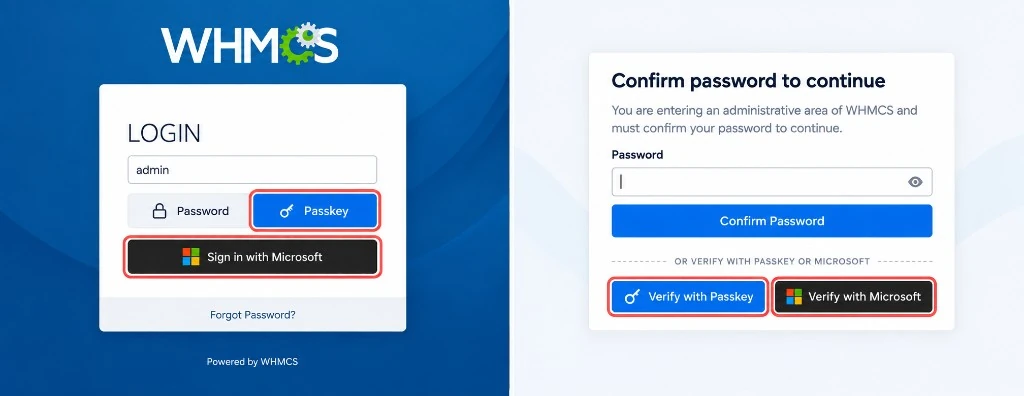
If you need a passkey workflow that core WHMCS does not provide, the Passkey WHMCS Module can add passwordless login for the client area and, where configured, the Admin Area. It works with passkeys, WebAuthn, FIDO2 security keys, biometrics, Windows Hello and Microsoft Entra ID on supported devices.
|
Admin login and password confirmation with Passkey and Microsoft highlighted. |
Use it as an authentication layer. It is not a substitute for server hardening or least privilege.
4. Protect WHMCS client logins
Client accounts hold invoices, domains, hosting services and often saved payment methods. Client login security deserves the same seriousness as admin security, even if the blast radius is smaller than a full administrator session.
Combine what your business can support: strong passwords, 2FA, passkeys, email verification, CAPTCHA on public forms, and monitoring of failed or unusual logins. IP-based controls can help customers who usually sign in from known networks. They should sit beside 2FA or passkeys, not replace them. People use mobile data, VPNs and new offices.
Client Login IP Authentication
The Client Login IP Authentication WHMCS Module can flag or block client logins from unrecognised addresses and remember verified ones. Admins can review verified IPs on the client profile and send a verification step when a new network appears. Use the limits carefully so a travelling customer is not locked out of billing or tickets.
5. Make password recovery safer
Account recovery is part of the security boundary. A strong login does not help if support resets a password after a short email that only quotes a domain name or invoice number.
WHMCS still lets customers use the forgotten-password flow, and admins can send reset mail where permissions allow. Support should still verify the requester with information that is not sitting on a stolen inbox or an unpaid invoice PDF.
Reset Client Password WHMCS Module
For teams that handle recovery requests every day, the Reset Client Password WHMCS Module gives administrators a controlled way to reset a client or client-user password and, if needed, email the customer. Restrict that permission to trusted staff and audit who can use it.
6. Restrict access to the WHMCS Admin Area
The Admin Area does not need to be reachable from every address on the internet if your staff work from known networks. WHMCS can limit Admin Area access to approved IPs. That is useful for office ranges, a company VPN, a dedicated management network or fixed administrator addresses.
If people work from changing networks, keep the restriction where you can and put the real weight on 2FA or passkeys. An IP allowlist is a complement, not a replacement for authentication.
|
Security tip If you allowlist office IPs, include the VPN egress address your staff actually use. Otherwise the first remote day becomes an outage. |
7. Rename the WHMCS admin directory
The default admin path is well known to scanners. WHMCS recommends changing the Admin Area directory name on self-hosted installs. That does not hide the application from a determined attacker. It does cut a lot of noisy, automated probing of /admin.
After you rename it, update the WHMCS configuration to match. Check modules, custom hooks and any callback URLs that still point at the old path. Then confirm you can log in before you close the old directory.
8. Use HTTPS everywhere
HTTPS should be mandatory. TLS encrypts the session between the browser and the server: passwords, tickets, invoices and admin work should not travel in clear text.
Check that the certificate is valid, covers the hostname clients actually use, and that HTTP redirects to HTTPS. The WHMCS system URL should be an https:// address. Payment and registrar callbacks should use HTTPS where the provider supports it.
HTTPS protects data in transit. It does not patch an old WHMCS build, a world-writable attachments folder or a stolen admin password.
9. Protect writable WHMCS directories
WHMCS needs a few directories to stay writable. Common ones are attachments, downloads and templates_c. Attachments and downloads can hold customer files. templates_c holds compiled templates.
Where WHMCS supports it, move those directories to a private location that the web server cannot serve as static files, then update storage settings. Do not chmod them to 777 to “fix” an upload error. Fix ownership so the PHP user can write, and nobody else needs to.
10. Protect configuration.php
configuration.php holds database credentials and other installation settings. Treat it as a secret. Restrict who can read or write it, and keep it out of public backups, git remotes and ticket attachments.
WHMCS guidance for many systems is a tight permission mode such as:
| chmod 400 configuration.php |
| Example only. Some stacks need 440 or 444 so PHP can still read the file. Wrong ownership plus 400 can take the site down. |
|
Important Do not copy a chmod from a blog and run it on production without checking the file owner and the user PHP runs as. Back up the file first, then test the Admin Area and client login. |
Protect the backup of configuration.php as well. A dump in an open cloud bucket is still a credential leak.
11. Move the WHMCS cron directory outside the web root
The crons directory should not be something a browser can request. Move it above the web root, then point WHMCS and the server crontab at the new location.
- Update the WHMCS configuration for the new cron path.
- Update the system cron job.
- Run the cron once by hand.
- Read the cron output or activity log.
- Confirm the old web-accessible path no longer serves those files.
If invoicing, suspensions or domain sync stop after a move, the cron path is the first thing to check. Official install and maintenance steps live in the WHMCS installation documentation.
12. Protect the vendor directory
The vendor directory holds Composer libraries WHMCS uses. Visitors should not be able to fetch arbitrary files from it.
On Apache, WHMCS ships .htaccess rules for this. NGINX does not read .htaccess, so NGINX hosts must deny that location in the server config. Test a direct request to a file under /vendor/ after you deploy. You want a 403 or equivalent, not a download.
|
Technical note If a reverse proxy or CDN sits in front of PHP, apply the deny rule on the origin that actually serves /vendor/. A header-only change at the CDN will not hide the files. |
13. Secure the WHMCS database
The database is the customer and billing record. Use a dedicated MySQL/MariaDB user for WHMCS. Grant the privileges that version needs for daily work, and only the extra grants required during install, upgrade or module activation. Remove unused grants afterwards. WHMCS lists database requirements with each release; use that list rather than granting ALL.
- Do not reuse the database password on SSH, the panel or another app.
- Do not publish credentials in chat, git or screenshots.
- Restrict remote database access. Prefer localhost or a private network.
- Use firewall rules in front of the database port.
- Keep the database server updated.
- Where the path between WHMCS and MySQL is not a local socket, consider encrypted connections.
14. Protect against clickjacking and use security headers
Clickjacking loads your page inside someone else’s site and tricks a logged-in user into clicking. A Content Security Policy with a frame-ancestors directive is the modern control. WHMCS recommends this as part of hardening a self-hosted install.
Review other headers at the same time: HTTPS enforcement, content type sniffing, and anything your CDN already sets. Headers can come from Apache, NGINX, the control panel, Cloudflare or another proxy. Duplicate or conflicting policies are common after a CDN cutover.
An overly strict CSP can break the Admin Area, a payment iframe or a custom theme. Change it in staging first.
15. Use CAPTCHA and anti-bot protection
Bots hit login, registration, the order form and ticket pages. WHMCS supports CAPTCHA options, including reCAPTCHA and hCaptcha. Turn them on where you see automated signups or junk orders.
CAPTCHA slows casual bots. It does not replace 2FA, fraud modules, payment risk tools or identity checks on high-risk products. If stolen cards are the problem, CAPTCHA alone will not end the chargebacks.
16. Keep WHMCS, PHP and your server updated
Run a WHMCS version that still receives updates. Match PHP, the OS, the web server, the database, the control panel, third-party modules, themes and gateways to what that WHMCS release supports. Do not pin this article to an old PHP number; check the requirements for your version before you upgrade.
A safe upgrade workflow:
- 1. Check WHMCS system requirements.
- 2. Read the release notes.
- 3. Check third-party module and theme compatibility.
- 4. Take a complete backup of files and the database.
- 5. Test in staging if you have it.
- 6. Upgrade in a maintenance window.
- 7. Test client and admin login.
- 8. Test ordering.
- 9. Test a payment.
- 10. Test provisioning.
- 11. Test domain tasks and cron.
Do not jump PHP versions on production the same night you upgrade WHMCS unless staging already passed both.
17. Remove unused modules, themes and integrations
Every addon is extra PHP on a system that already talks to money and servers. Review the installation and remove modules, order forms and themes you no longer use.
For what you keep: download it from the vendor, keep it updated, confirm it is still maintained, and check the permissions it asks for. A stale, unmaintained module can be a problem even when WHMCS itself is current.
18. Never use nulled WHMCS software
Skip nulled, cracked or “decoded” copies of WHMCS, modules or themes. Modified packages can include backdoors, extra admin users, or code that phones home. On a billing platform that risk is not theoretical: the same process can read configuration.php, the database and payment settings.
Use licensed software from WHMCS and from vendors you can name. If a zip arrived from a forum thread, do not install it.
19. Apply the principle of least privilege
Full administrator access is not a default for every hire. A support agent often needs tickets and client profiles, not gateway secrets, server credentials, API tokens or the admin-management screen.
The same rule applies to API credentials and module settings. Issue keys with the minimum scope, keep production keys off developer laptops when a sandbox exists, and revoke them when the integration or the person is gone.
20. Consider customer verification and eKYC
Some incidents start before anyone logs in: fake signups, stolen cards, chargebacks, and hosting used for abuse. For VPS, dedicated servers or other high-risk products, it can make sense to verify the customer before automatic provisioning.
An eKYC flow is not login security. 2FA and passkeys protect an existing account. Verification protects onboarding. The Smart eKYC Module for WHMCS is one option for hosts that need identity checks before activation. It is optional. Many businesses will not need it; some will limit it to high-risk products such as VPS or dedicated servers.
21. Secure your server and control panel
WHMCS cannot make up for an open SSH port, an unpatched kernel or a control panel account that still uses the installer password. At a minimum, review firewall rules, SSH keys or a non-default SSH port with key-only login, disabled unused services, OS updates, and who can open cPanel, Plesk or the equivalent.
Add malware scanning and a WAF if they fit the environment. Restrict who can reach the database. Keep file ownership consistent with the PHP user. Read auth and web-server logs, not only the WHMCS activity log.
22. Secure API keys and integrations
WHMCS usually talks to payment gateways, registrars, VPS or cloud APIs, email, accounting and internal tools. Each credential is a path into someone else’s system, or from that system back into yours.
- Unique credentials per integration.
- Minimum required permissions.
- No keys in public git or screenshots.
- Rotate secrets when staff with access leave.
- Remove unused keys.
- Use test credentials in development.
- Watch for API traffic you did not expect.
23. Maintain reliable backups
Back up the database, application files, configuration.php, customisations and the server config you would need to rebuild. Keep copies off the production disk. Restrict who can download those archives.
A practical target is three copies, on two different kinds of storage, with one copy off-site. That only counts if you have restored one. A backup that has never been tested is a file, not a recovery plan.
24. Monitor your WHMCS installation
Watch for repeated failed logins, new admin accounts, odd login locations, unexpected file or module changes, payment or configuration edits, unusual API use, suspicious orders and cron failures. Give someone a job to look at those alerts. An unread mailbox is not monitoring.
25. Review security after major changes
Re-run the checklist after WHMCS or PHP upgrades, a server move, a new module or gateway, a new API integration, staff changes, firewall or DNS changes, and large configuration edits. New code and new people are when old IP allowlists, cron paths and file permissions quietly stop matching reality.
A layered security approach for WHMCS
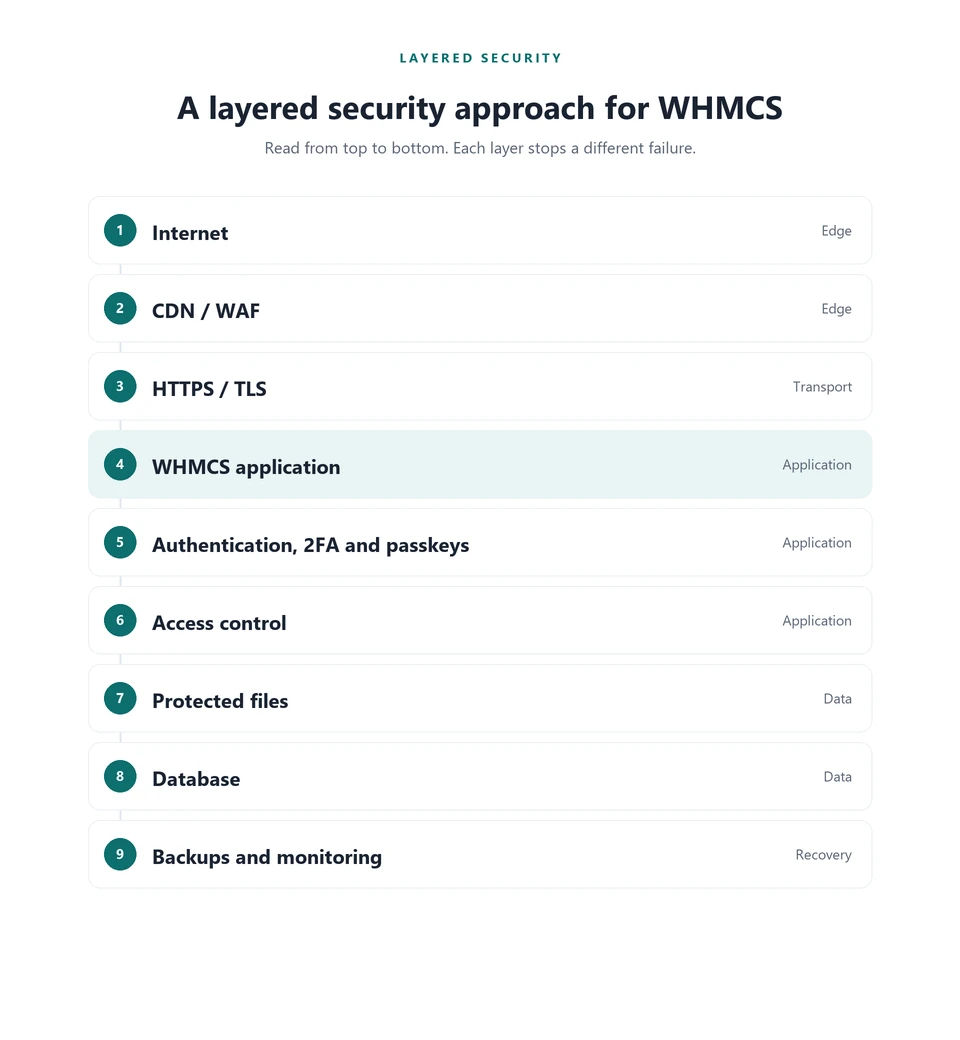
Think of the install as a stack. Traffic should hit a CDN or WAF, then HTTPS, then the application, then authentication and access control, then protected files, then the database, with backups and monitoring underneath.
|
Each layer catches a different failure. HTTPS does not help if cron is web-accessible; 2FA does not help if the database is open to the internet. |
Recommended WHMCS security tools
These add controls around authentication and recovery. They do not replace the checklist above.
Passkey WHMCS Module
Adds passwordless authentication for clients and administrators using passkeys and related WebAuthn methods, with admin tools for policy and device management.
Client Login IP Authentication WHMCS Module
Adds IP-based checks in the client area so unfamiliar addresses can be challenged or blocked without forcing every customer onto a static IP.
Reset Client Password WHMCS Module
Gives trusted staff a controlled workflow to reset a client password or send a reset email when the standard recovery path is not enough.
Conclusion
WHMCS security is layered. Authentication, application hardening, server configuration, database privileges, updates, backups and monitoring each cover a different failure. None of them is enough on its own.
Start with administrator 2FA, HTTPS, a renamed and restricted Admin Area, a protected configuration.php, cron and writable data outside the web root, a tight database user, current software and a restore-tested backup. Add passkeys, IP checks, CAPTCHA or customer verification where the business actually needs them.
Review the install after upgrades and staff changes. A secure WHMCS environment is the result of those controls working together, not of one product or one header.