Quick answer
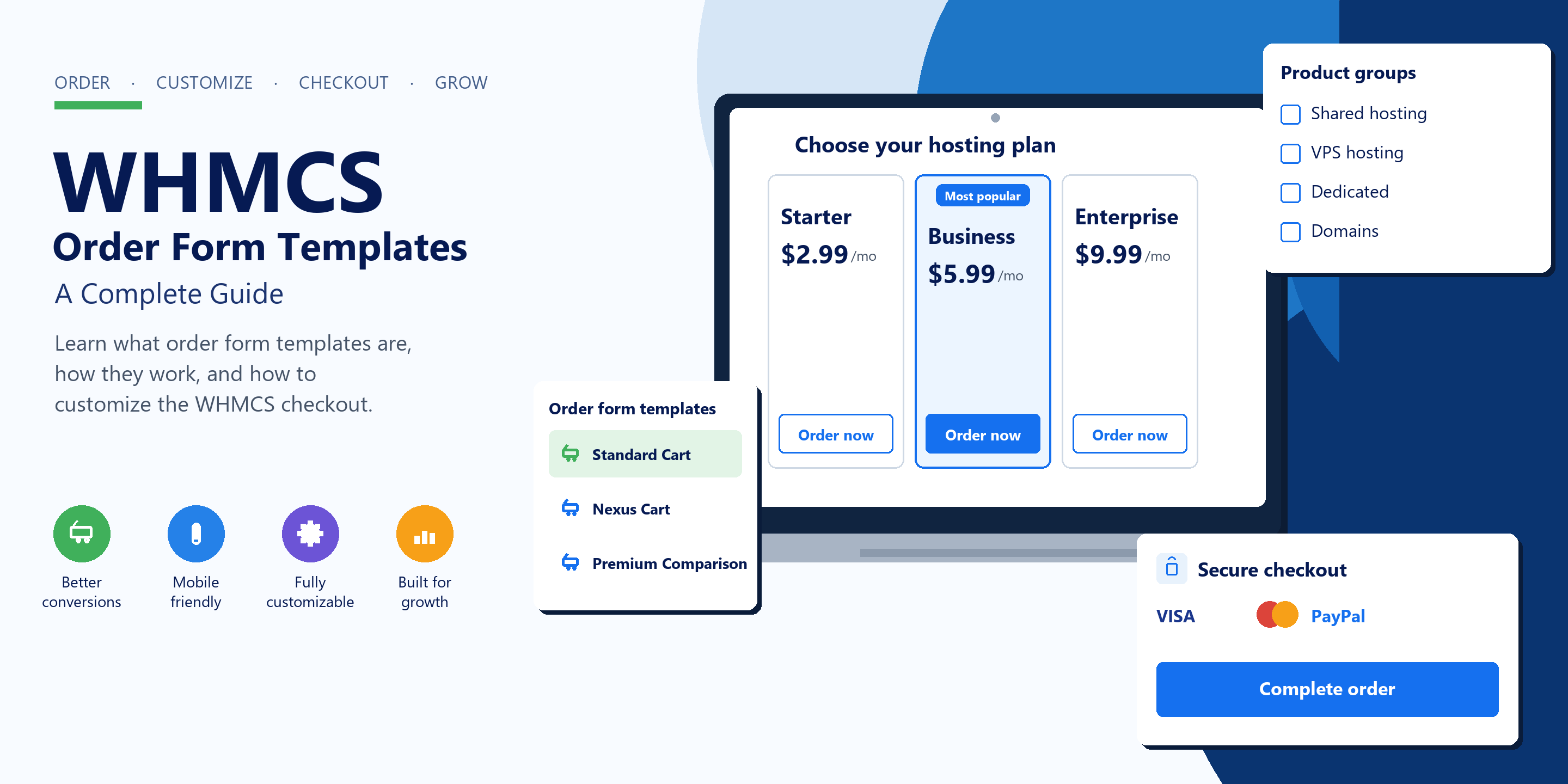
A WHMCS order form template controls how customers browse products, configure them, and check out. It is separate from the client area theme. Current installs ship Standard Cart, Nexus Cart, Premium Comparison, Pure Comparison, Supreme Comparison, Universal Slider, and Cloud Slider. View cart and checkout always use the system default template.
Change the client area theme, refresh the cart, and the checkout still looks like the old one. That catches a lot of people in the first week. The theme and the order form are switched in different screens, so a new header never gives you a new cart.
If you want the wider picture of the product first, see what WHMCS is and how it is used. This page stays on the ordering layer: which WHMCS order form templates ship today, how to change them without surprising live customers, and when a custom checkout is worth the maintenance.
What is a WHMCS order form template?
WHMCS splits the customer-facing site into separate jobs. The system theme is the client area: header, footer, navigation, sidebar, and the frame around pages people see after they log in. An order form template is the buying path. Product lists, configuration, domain search, the shopping cart, and checkout all come from that template.
WHMCS puts those files in /templates/orderforms/ on a self-hosted install, in their own folders, away from the client area theme. That is why a theme change feels like it “did nothing” on the cart. You edited the other directory.
This folder method is for self-hosted WHMCS. WHMCS Cloud does not support custom order form templates created this way. On Cloud you work with the templates WHMCS provides in that environment.
A simple split, which saves time later:
- Theme is the client area.
- Order form is the purchase.
The templates use a parent and child. Copy only the files you want to change. Premium Comparison does this already: it ships products.tpl and inherits cart and checkout from Standard Cart. A comparison page that does not match checkout is normal.
How a WHMCS order form fits the purchase
The visuals change. The sequence does not:
- Product group
- Product choice
- Configuration (billing cycle, options, custom fields)
- Cart
- Checkout
- Payment
A hosting order is the obvious example: open Shared Hosting, pick a plan, choose monthly or annual, add an option, review the cart, pay. Domain orders add search, transfer, and nameservers in the same template. None of that is the client area.
The template decides layout. Prices, tax rules, and provisioning stay in products, tax configuration, and modules. A clean layout that drops a configurable option, rejects a promo code, or fails the gateway you actually use is a worse cart than the default.
WHMCS order form vs theme
These two get mixed up because both look like “the design.” They are switched in different places, and editing one leaves the other alone.
| Job | Order form template | WHMCS theme |
| Product listing | Yes | No |
| Product configuration | Yes | No |
| Shopping cart and checkout | Yes | No |
| Header, footer, navigation | Yes | No |
Header, footer, and client area navigation belong in a child theme, which is what WHMCS recommends so those edits survive an update. The theme side of the catalog is on the WHMCS themes and templates hub. Putting that CSS in an order form file does not restyle the logged-in portal.
Watch the name Nexus. In WHMCS 9.0, Nexus is the client area theme. Nexus Cart is the order form that shipped with it. Selecting the theme does not select the cart, and selecting the cart does not switch the theme.
Order form templates WHMCS ships with
The current WHMCS list has seven order form templates. Older write-ups often stop at Standard Cart and one comparison layout. That short list leaves out templates you will actually see in the Ordering tab.
| Template | General Style | Suitable For |
| Standard Cart | Traditional ordering flow. Default, and the usual parent for a child template. | General hosting and service businesses |
| Nexus Cart | Modern cart, added in WHMCS 9.0 with the Nexus theme. Layout changes are CSS only. | Newer WHMCS setups that want the Nexus look |
| Premium Comparison | Side-by-side product comparison. Only the product page differs from Standard Cart. | Hosting, VPS, and other tiered plans, about 3 products |
| Pure Comparison | Side-by-side product comparison | Groups of about 4 plans |
| Supreme Comparison | Wider product comparison | Groups of about 6 plans |
| Universal Slider | Slider, with comparison bars and a text description | Groups of about 4 to 8 products |
| Cloud Slider | Comparison slider | Groups of about 2 to 12 products |
The counts are layout guidance, not a database limit. Two products look sparse on Supreme Comparison. Twelve products turn Premium Comparison into a sideways scroll.
Standard Cart
This is the default, and the parent a custom template should use. Hosting, domains, SSL, and one-off services all fit without a comparison table. If orders already complete on a phone, leave it.
Nexus Cart
Nexus Cart arrived in WHMCS 9.0 with the Nexus theme. Domain pricing, domain results, and view cart are a single-page app. You cannot rebuild those screens with a new products.tpl the way you would on Standard Cart. Colors and type go through CSS variables in templates/nexus/css/custom.css. If the checkout structure has to change, pick a different template. The Nexus Cart developer page covers the variables.
Premium, Pure, and Supreme Comparison
Same idea, three widths. Premium Comparison is a child of Standard Cart: only the product listing is custom, and later steps stay on the parent. Pure is aimed at about four products, Supreme at about six. They suit groups where the choice is “which column.” A product that is mostly RAM and disk dropdowns does not belong in a comparison row.
Universal Slider and Cloud Slider
Universal Slider is a slider with comparison bars and a text description. Keep every description the same shape or the slide height jumps. Cloud Slider is the wider comparison slider: about four feature rows, same order on every product, somewhere between two and twelve products in the group.
WHMCS lists the set as compatible with Six (Bootstrap 3) and Twenty-One (Bootstrap 4). Nexus Cart is the exception, and it belongs with the Nexus theme. Headlines, taglines, and featured products are documented on the WHMCS order form templates page. Re-check that page on a major upgrade.
Feature highlights
Comparison and slider templates read features from the product description, one per line, with a colon:
Disk space: 50 GB
Bandwidth: Unmetered
Email accounts: 10
Same labels, same order, on every product in the group. “Disk space: 50 GB” next to “NVMe storage: 50GB” will not line up, and a missing colon drops the row. If the description is ordinary HTML, turn feature highlights off or the cart tries to parse paragraphs as a table.
Names on an old server
Boxes, Modern, Slider, and Web20cart still show up on old installs and in old threads. They are not in the current shipped list. Do not start a new cart in those folders. Use a child of Standard Cart.
How to change your WHMCS order form template
Switching the default is a few clicks. Doing it on a Friday afternoon, on the live cart, is how small layout bugs become lost orders.
- Log in to the Admin Area.
- Go to Configuration > System Settings > General Settings.
- Open the Ordering tab.
- Set System Default Order Form Template.
- Save changes.
That choice applies to every product group that does not have its own template. It is also the template WHMCS uses for view cart and checkout, with no exception for mixed carts.
The Ordering tab is also where WHMCS reports a clash between the system theme and the order form. If the cart errors right after you save, read that message before you edit files.
How to assign an order form to a product group
Open the group under Configuration > System Settings > Products/Services and pick an order form template on the group.
That choice overrides the default on the group page and on configuration for products and bundles in the group. Shared hosting can use Premium Comparison while a one-product SSL group stays on Standard Cart.
It stops at the cart. View cart and checkout stay on the system default, because one cart can hold a shared plan, a domain, and an SSL certificate together. WHMCS will not swap templates halfway down that page.
A link with ?carttpl= and the directory name beats both the default and the group template for that visit. Fine for a campaign. Easy to forget when last year’s banner still points at it.
How to preview an order form template
You do not have to make a template the default to see it. Add the directory name to the cart URL:
?carttpl=premium_comparison
Use the folder name, not the label in the dropdown. Standard Cart is the folder standard_cart. The parameter wins over the default and the group template for that visit. Open a product, change the billing cycle, apply a promo code, and reach checkout before you make it the default.
How to create a custom WHMCS order form templatee
Create a child. Do not edit the stock folder. The next upgrade replaces files you changed in place, and you will not remember which lines were yours.
1. Create the folder
Inside /templates/orderforms/, add a directory such as mycart. Lowercase letters, numbers, hyphens, and underscores only. Spaces are rejected. The folder name is what you will see in ?carttpl= and, after it is valid, in the Ordering tab.
2. Add theme.yaml
The file has to name a parent. This is the minimum:
config:
  parent: standard_cart
standard_cart is the right parent for almost every custom cart. Do not point the parent at Boxes, Modern, or another old folder. A child also will not rebuild Nexus Cart’s single-page screens. That layout is not a template file you can override.
3. Copy only what you will change
If the product grid is the problem, copy products.tpl. If the options screen is the problem, copy configureproduct.tpl. Leave the rest so they keep coming from the parent. On upgrade, WHMCS updates parent files you did not copy. Your copies stay yours, so you diff them against the new parent. That is still less work than cloning the whole template.
A small child looks like this:
/templates/orderforms/standard_cart/
/templates/orderforms/mycart/theme.yaml
/templates/orderforms/mycart/products.tpl
- products.tpl lists the group.
- configureproduct.tpl is billing cycle, configurable options, and custom fields.
- viewcart.tpl is the cart, tax estimate, and promo box.
- checkout.tpl is contact details and payment.
- domainregister.tpl, domaintransfer.tpl, and configuredomains.tpl cover search, transfer, nameservers, and domain addons.
- complete.tpl is the thank-you page. A conversion snippet that should run only after payment belongs in the paid branch of this file.
Addons, renewals, the fraud check, the MarketConnect promo, and the error page are separate files. You rarely need them on day one. The full list is in the custom order form templates docs, and the child-template steps are on the developer page.
Premium and custom WHMCS order form templates
The built-in set covers a normal catalog, a comparison, and a slider. It does not turn the order into one page. If that is the requirement, it is a third-party order form, not another choice in the Ordering tab.
We build and maintain two of those. Both install as order forms. Neither replaces the client area theme.
One Step Checkout
The WHMCS One Step Checkout order form puts the plan, options, promo code, payment method, and summary on one page. It uses jQuery and Ajax, can filter gateways by country, and lets you manage gateway icons in the Admin Area. It also has a phone mini cart, GeoIP currency, more than one language, and product addons. Upload it to the order form folder and activate it. It leaves the client area theme alone, and it runs with WordPress or HTML front ends and with skins such as Six, HostX, ClientX, and Lagom.
VueJS One Step Checkout
The VueJS One Step Checkout order form is one page as well, on Vue.js, so parts of the cart update without a full reload. Hosts use it for SSL, hosting, domains, VPN, VPS, VoIP, and IPTV. It can show icons, switch currency from the visitor’s location, run more than one language, and take color and layout choices from the product settings.
The current version handles one product in the cart at a time. If customers regularly buy a plan, a domain, and an SSL certificate together, confirm that on the product page before you buy. One Step Checkout is the safer pick when the cart is often mixed.
Demos for both are on the WHMCS order form templates page. Place a test order with your own products. A fast demo on three shared plans can still struggle with configurable options.
When a custom order form is worth it
Leave the default alone if people already finish orders and the phone layout is usable. A new template will not repair a confusing price, a registrar that errors, or a gateway that declines in your main country. Fix those first.
Abandonment that is actually the cart. Extra pages, a total that shows up only at the end, and a promo field that errors are checkout problems. A slow server or a missing payment method is not. Read the steps and the gateway log before you blame the template.
Phones and dense products. Comparison tables and long VPS option forms (CPU, RAM, disk, OS) are where stock layouts get awkward. Test on a phone first. A child that only restyles configureproduct.tpl is often enough. A one-page cart is the larger step, when the number of pages is what people quit on.
The cart looks like another company. A child template or a one-page order form can pull checkout toward the marketing site. The client area still needs its own theme. People notice the old portal as soon as they land in it after payment.
Common WHMCS order form problems
I changed the theme and the order form stayed the same
Change System Default Order Form Template on the Ordering tab, or set a template on the product group. The system theme dropdown does not control the cart.
My custom template is missing from the list
Look for a space in the folder name, a missing or wrong parent in theme.yaml, or files saved inside the client area theme instead of /templates/orderforms/. Reload the Ordering tab after you fix that.
The product group uses one template and checkout uses another
The group template covers that group and its configuration step. View cart and checkout follow the system default. Premium Comparison looking different from checkout is the parent-child split, not a failed save.
The template broke after a WHMCS upgrade
A copied child file no longer matches the parent, or a third-party order form has no build for that version. Read the Ordering tab for a compatibility error, and diff the files you copied, before you roll the upgrade back.
CSS or JavaScript changes never appear
The browser, template cache, or a CDN is serving the old file. Confirm the URL is the child stylesheet, or templates/nexus/css/custom.css for Nexus. Editing the parent does nothing if the child has its own copy.
Nexus Cart ignores a new products layout
Those single-page screens are not template files you can replace. Styling is CSS variables. For a different structure, use a Standard Cart child or another order form.
Upgrades, and what to test before you switch
A parent-child template keeps upgrades smaller, because files you did not copy move with the parent. The copies do not. After a major release, diff them. A checkout file from two versions back is a common reason the product page looks fine and payment does not.
Third-party order forms need a build for the new version before you upgrade production. Test gateways, domain lookup, and provisioning on staging.
Before you change the default, run through this on the template you intend to ship:
- The WHMCS version you are actually running, and whether the template claims to support it
- A phone, a tablet, and a desktop
- Billing cycles, configurable options, and custom fields
- Domain search, transfer, and nameservers, if you sell domains
- Each payment gateway you offer customers, including a decline
- A second currency or language, if you use them
- A promo code and a taxed product
- One product that provisions automatically, through a successful test order
The longest feature list is not the winner. The template that matches the catalog, and that someone can still update next year, is the one that stays in production.
Conclusion
For a straightforward catalog, stay on Standard Cart and treat it as the parent if you customize. Use a comparison or slider when the group is a set of plans with one shared feature list. Use Nexus Cart on the Nexus theme when CSS is all you need to change. Use a child for a few files, and a one-page checkout only when the extra steps are what people quit on.
Test the whole order before you change the default: products, options, domains, promos, tax, gateways, provisioning, and a phone.
To compare a one-page cart with the stock flow, browse our WHMCS order form templates and the live demos. If you want a hand with a child template or a checkout that has to match the rest of the site, contact the team.