VMware WHMCS module for vSphere VPS and dedicated servers
- VERSION 5.1.1
- LATEST UPDATE 16 Sept, 2026
- WHMCS 9.0.8 & PHP 7.4 to 8.4

 vCenter 8.x Compatible
10 Days money back guarantee
Free Module Updates
One-Click Upgrade
Easy Third Party Integration
Access To Premium Offers
Multi-Level Tech Support
10 Days Money Back Guarantee
Development licence available for 30 Days on demand only

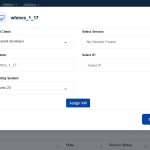
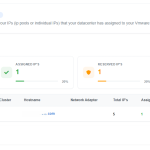
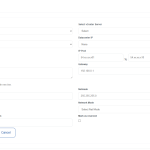
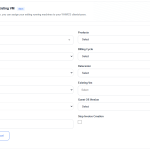
Module Overview
The WGS VMware vSphere WHMCS Module automates the complete virtual machine provisioning process, helping hosting providers save time, reduce manual work, and streamline VMware management.
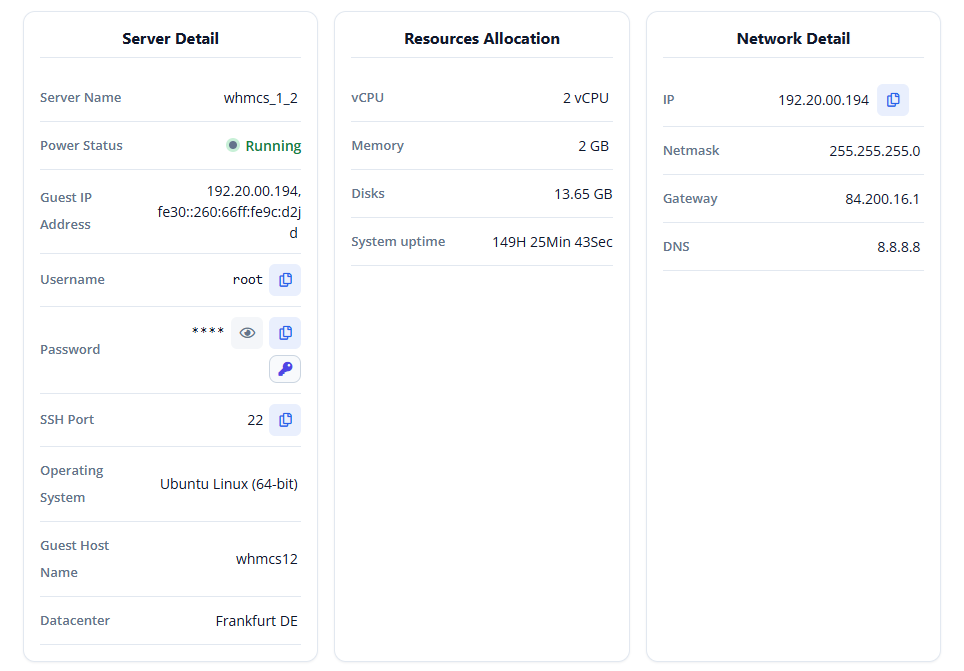
When a customer places an order, the module automatically creates the virtual machine, installs the selected operating system, configures the network, and provisions the service without any manual intervention. Once the VM is ready, all login credentials and server details are automatically delivered to the customer.
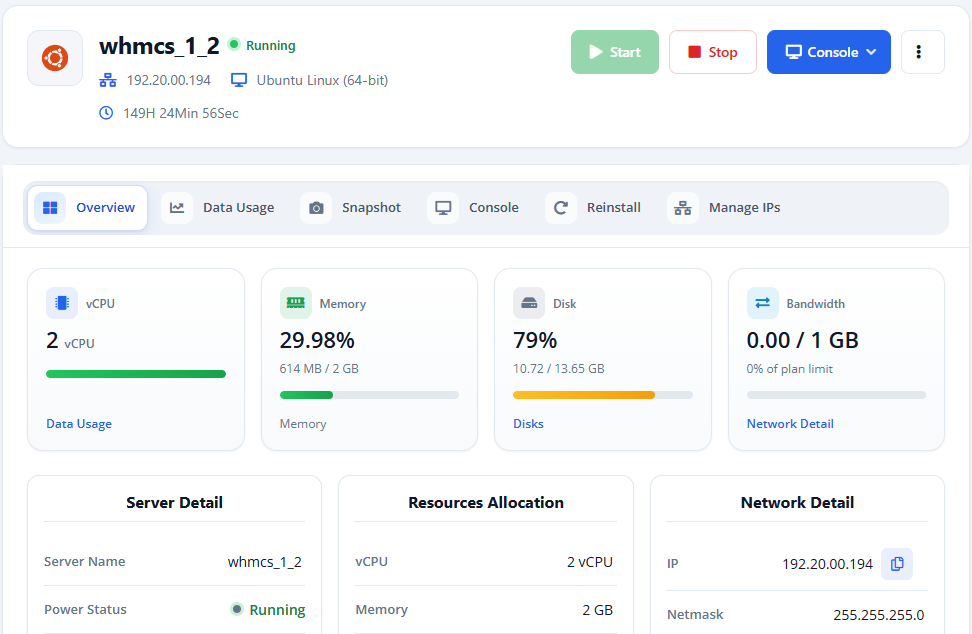
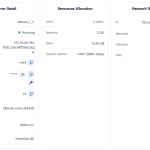
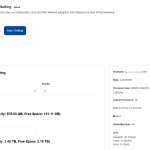
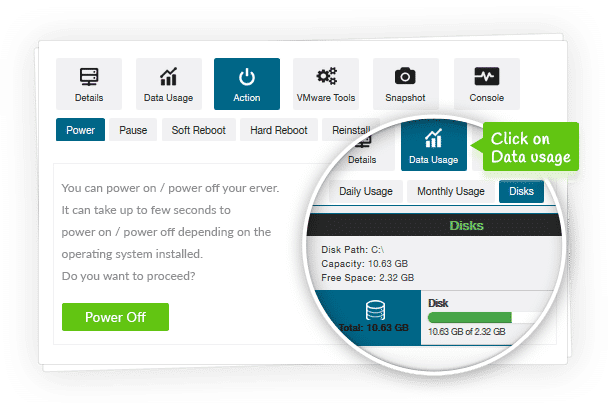
The module also includes a modern and feature-rich client area that allows customers to manage their virtual machines independently. They can start, stop, reboot, reinstall, and access the console, manage snapshots, monitor resource usage, reset password, and perform other common VM management tasks directly from their WHMCS account.
By automating routine provisioning and management tasks, the WGS VMware vSphere WHMCS Module helps reduce operational overhead, improve service delivery, and provide a better experience for both administrators and customers.
VMware Feature List

Auto-Provisioning
Automatically provisions and configures a new virtual machine immediately after a customer completes their order.

Configurable Options
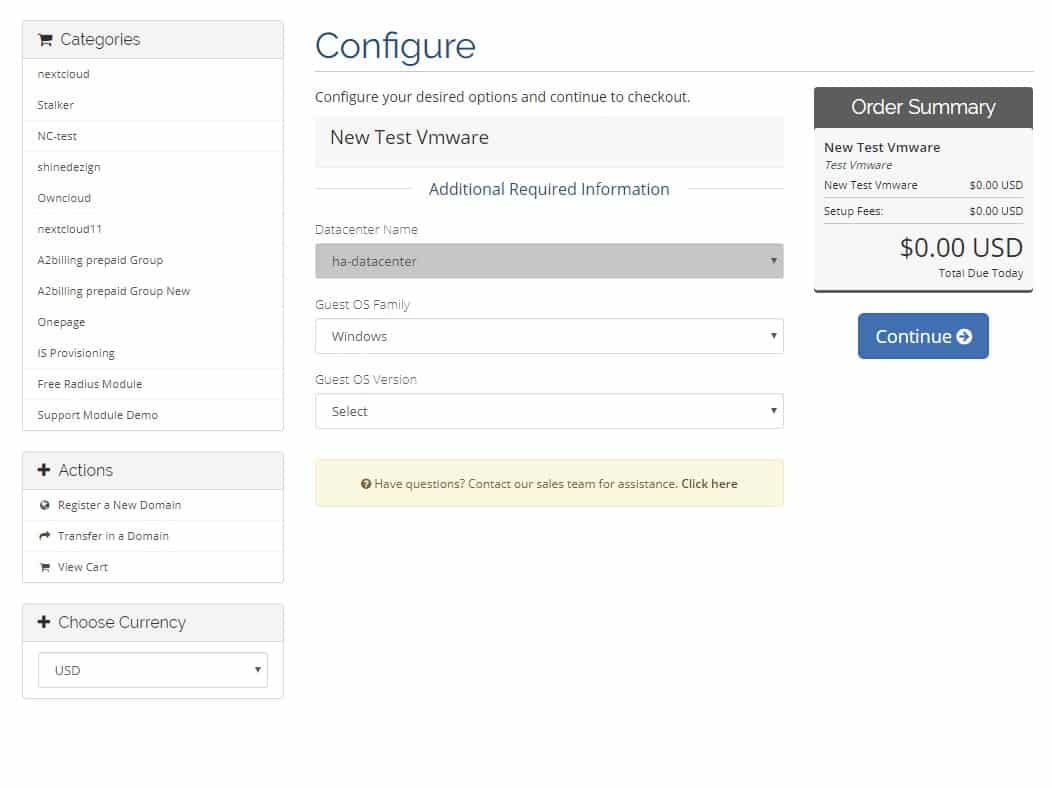
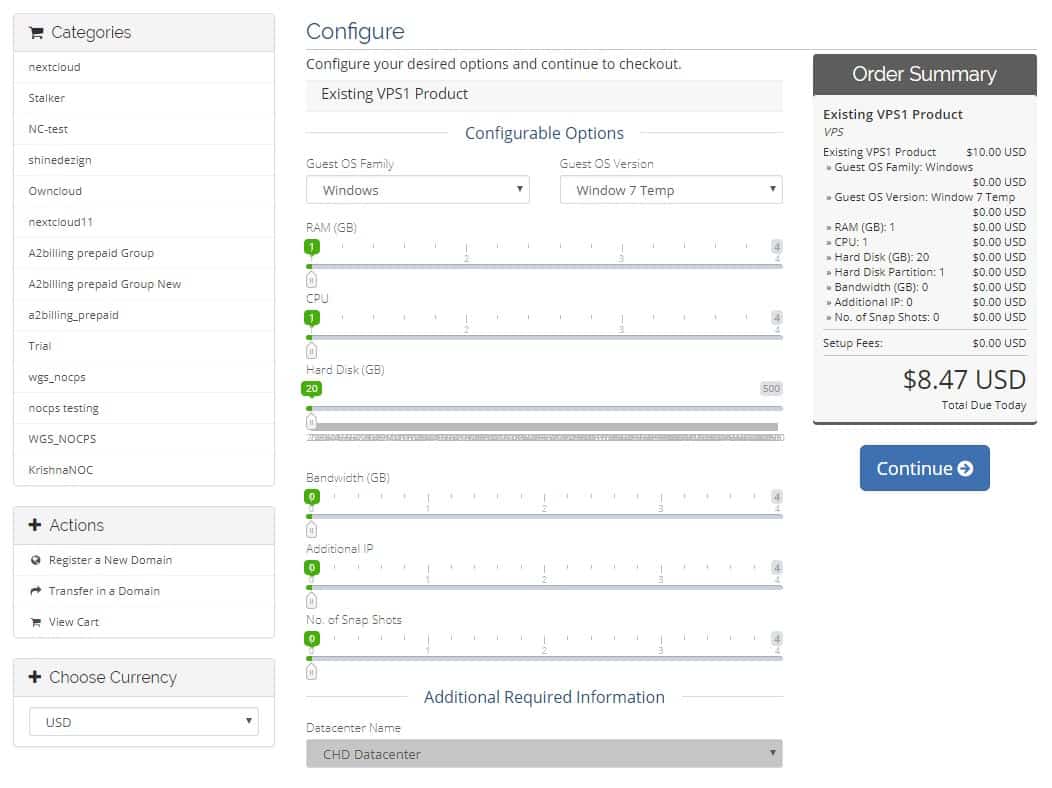
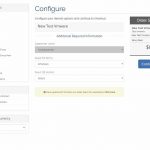
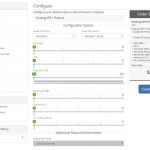
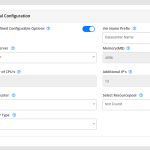
Automatically provisions virtual machines based on the configurable options selected during the customer’s order.

VM Management Feature
Manage virtual machines with one-click actions, including start, stop, reboot, shutdown, snapshots, and console access.

Rebuild
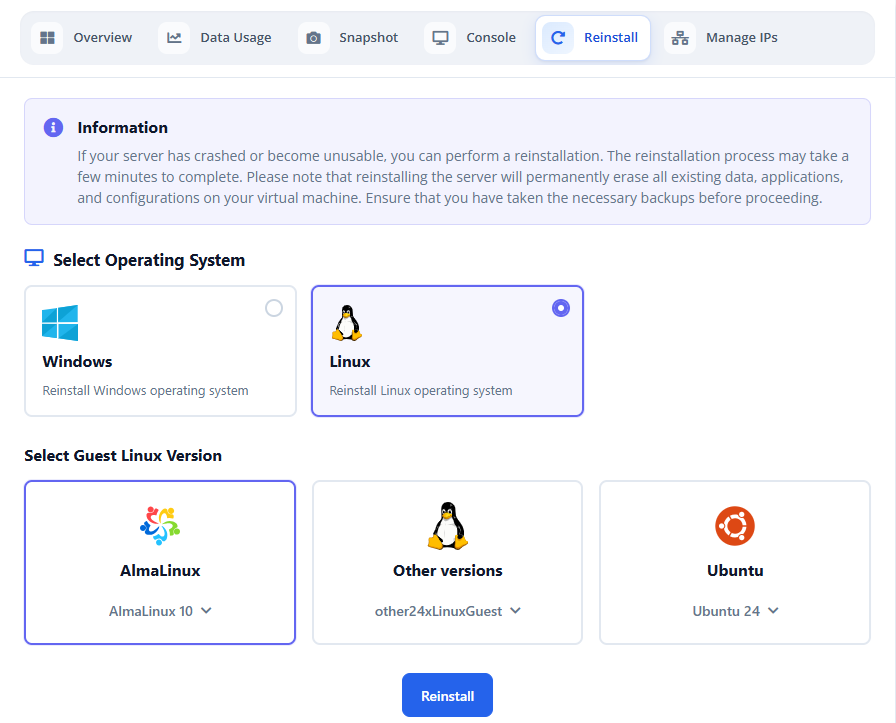
Allow customers to reinstall their operating system anytime directly from the client area with ease.

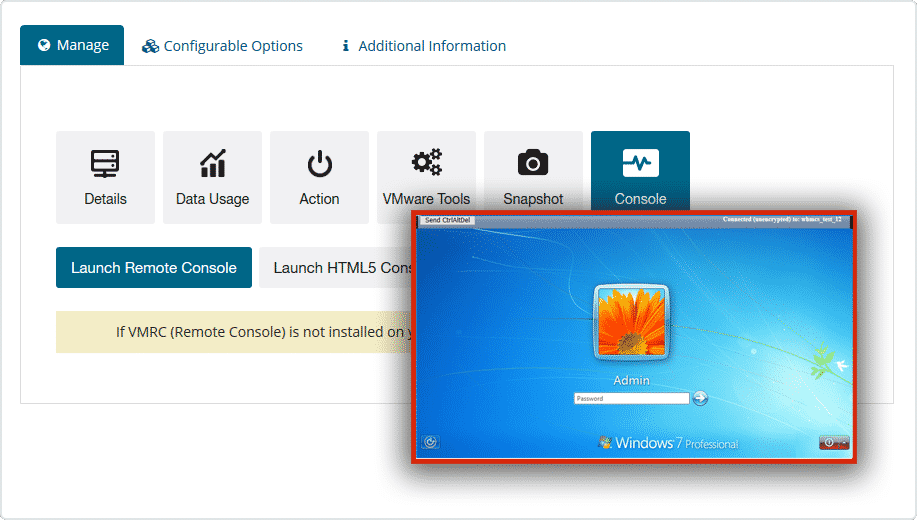
Console
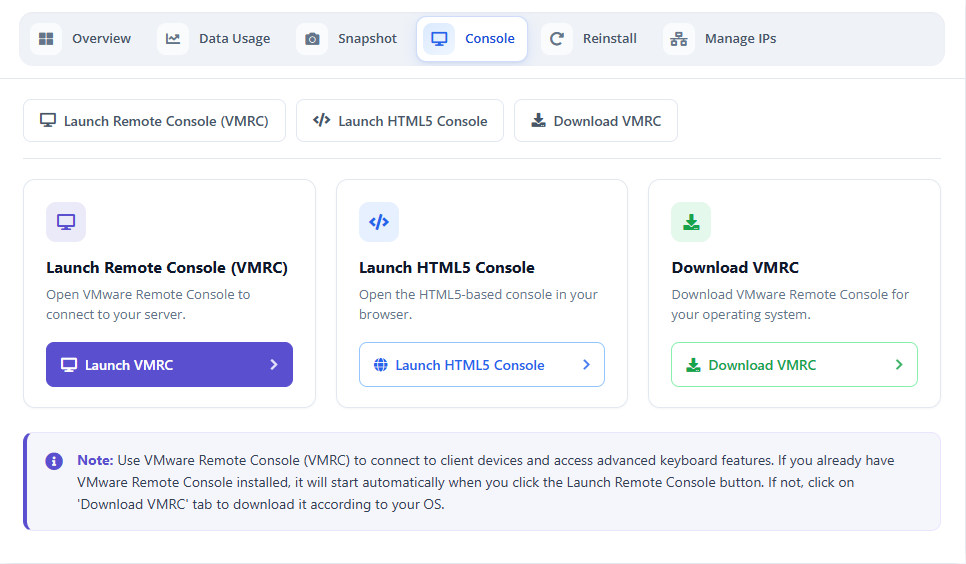
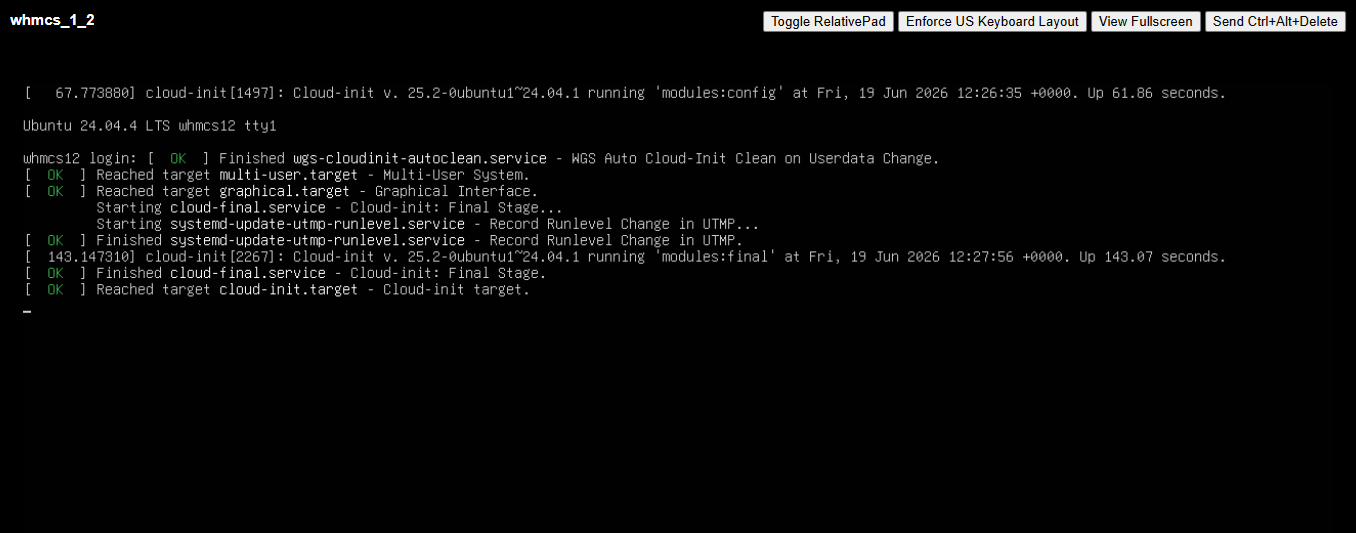
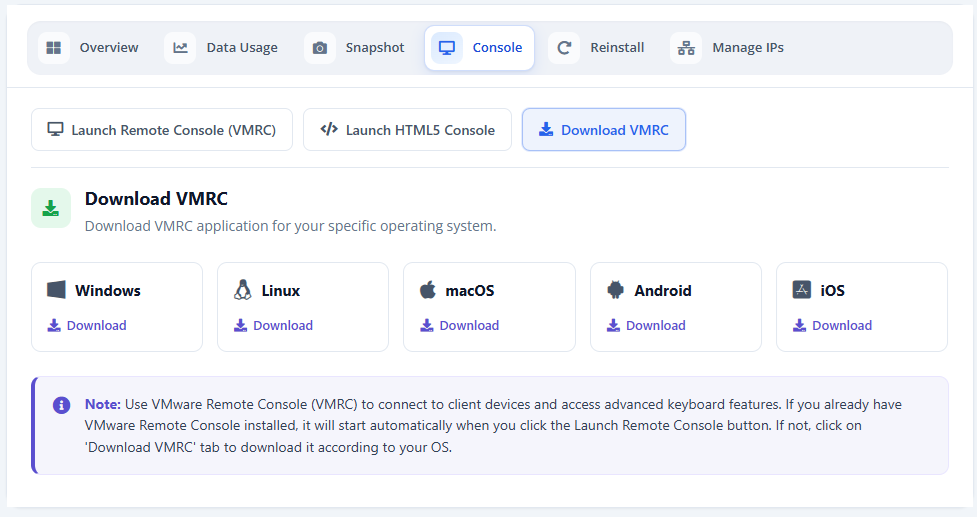
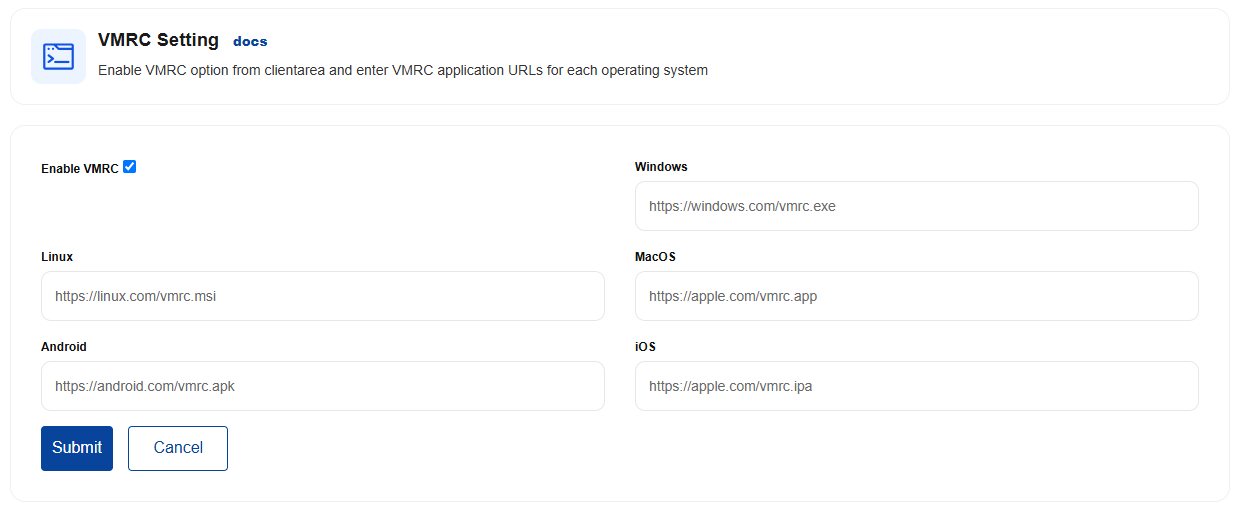
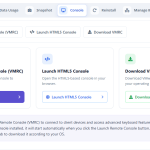
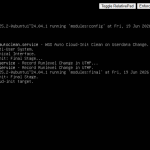
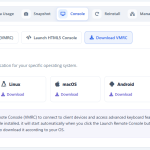
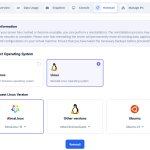
Access virtual machines remotely using NoVNC or VMRC for secure and convenient management anytime.

WHMCS IP Manager
Create IP pools and automatically assign available IP addresses to virtual machines during provisioning.

Statistical Graphs
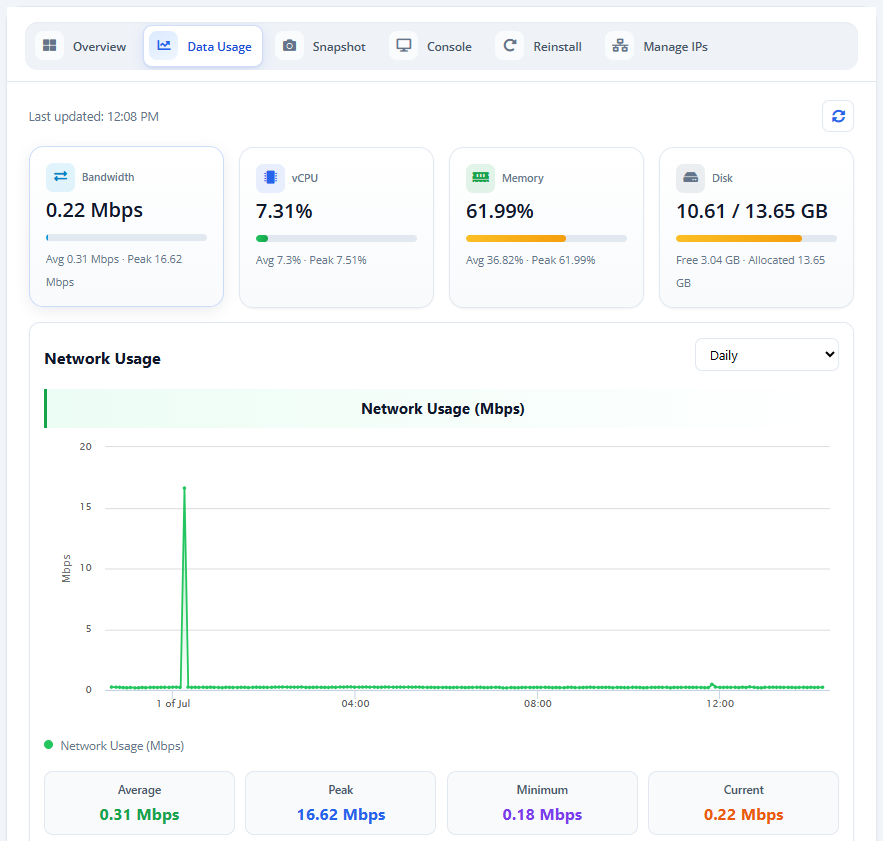
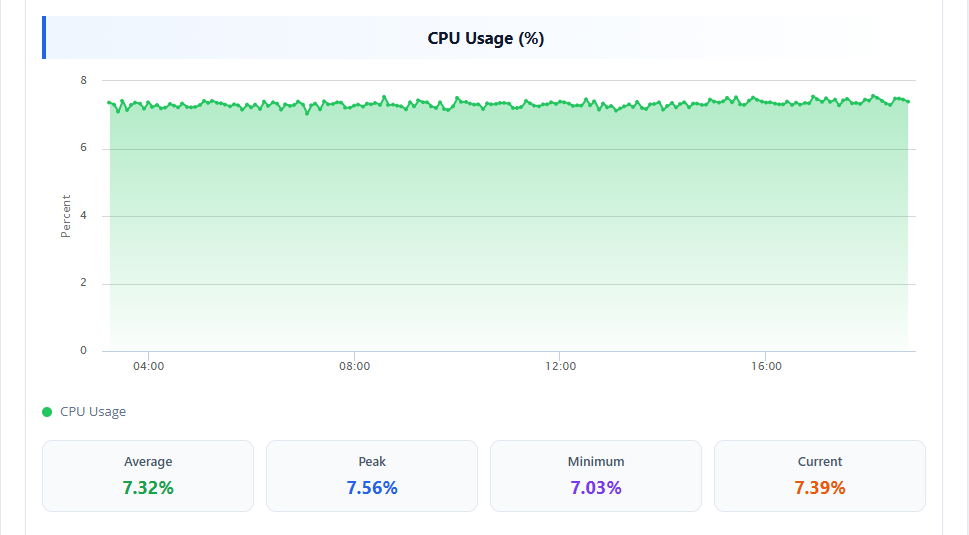
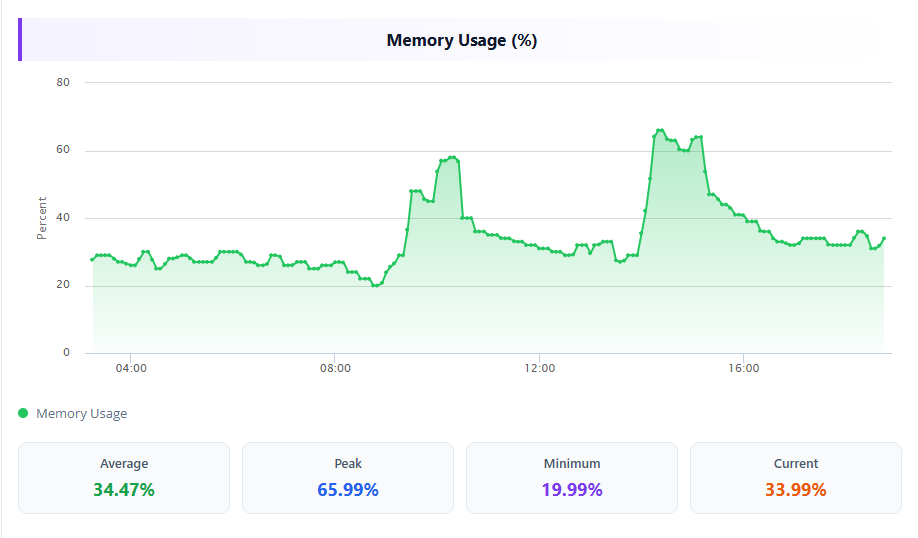
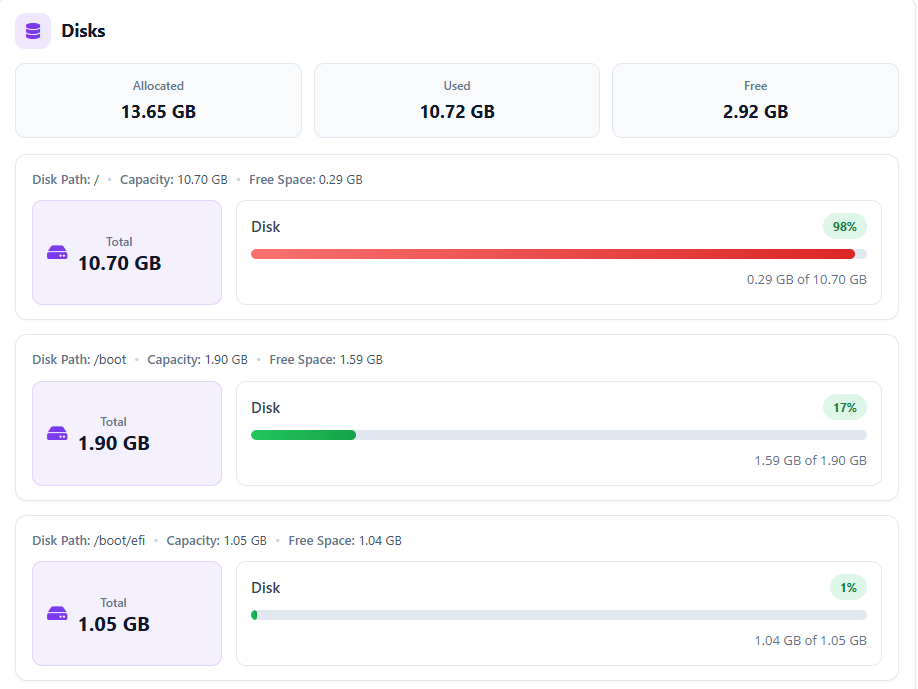
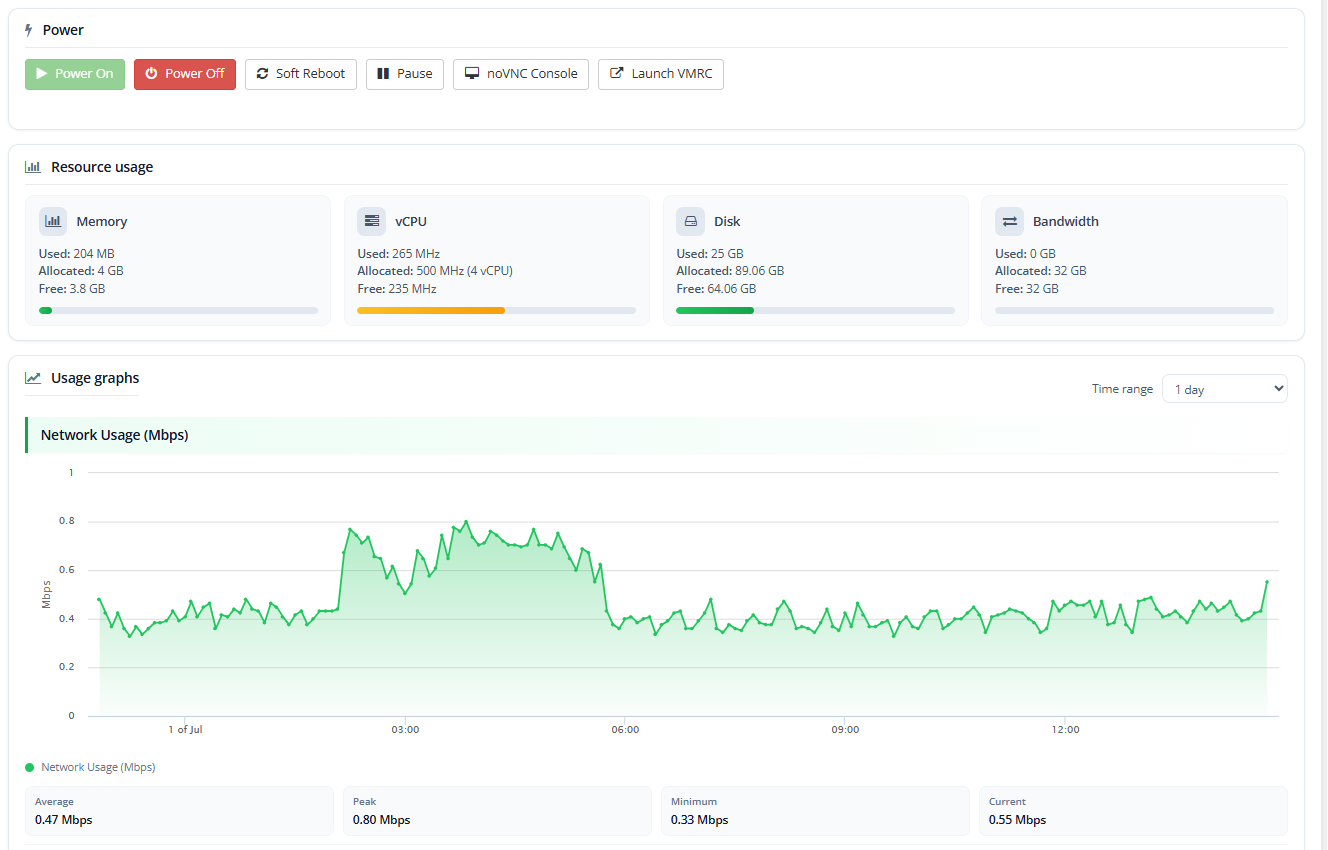
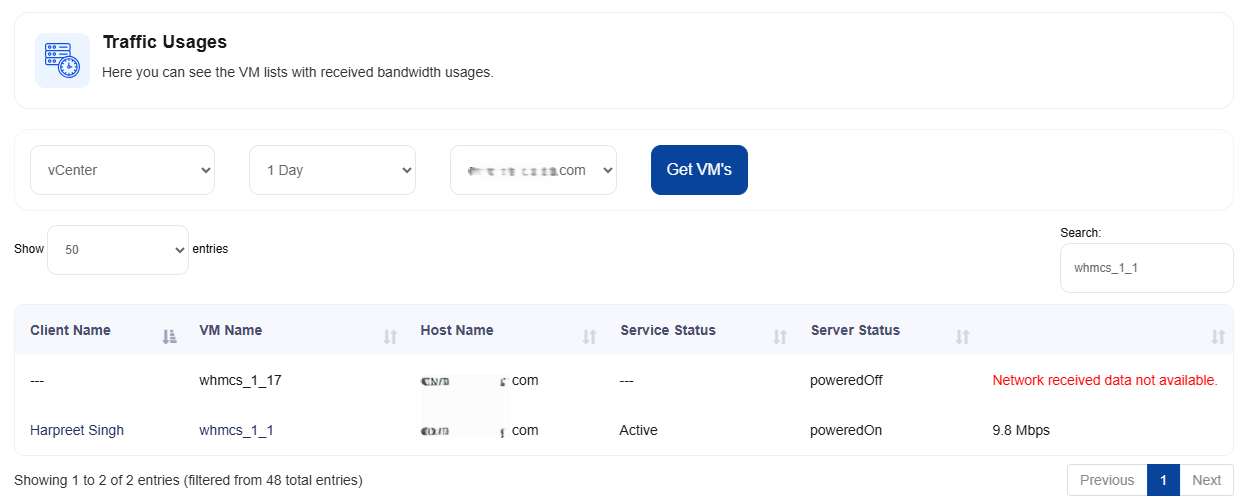
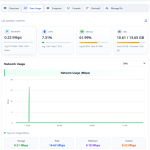
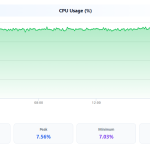
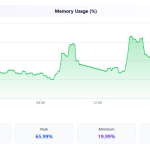
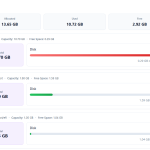
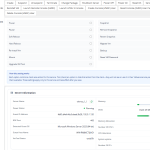
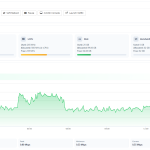
View real-time VM performance with easy-to-read graphs for CPU, memory, disk usage, network activity, and uptime.

Third-Party Installation
Admin can configure a third party OVH app in a module to give access to your customers to manage OVH IPs and firewall rules in WHMCS.

ACL Groups
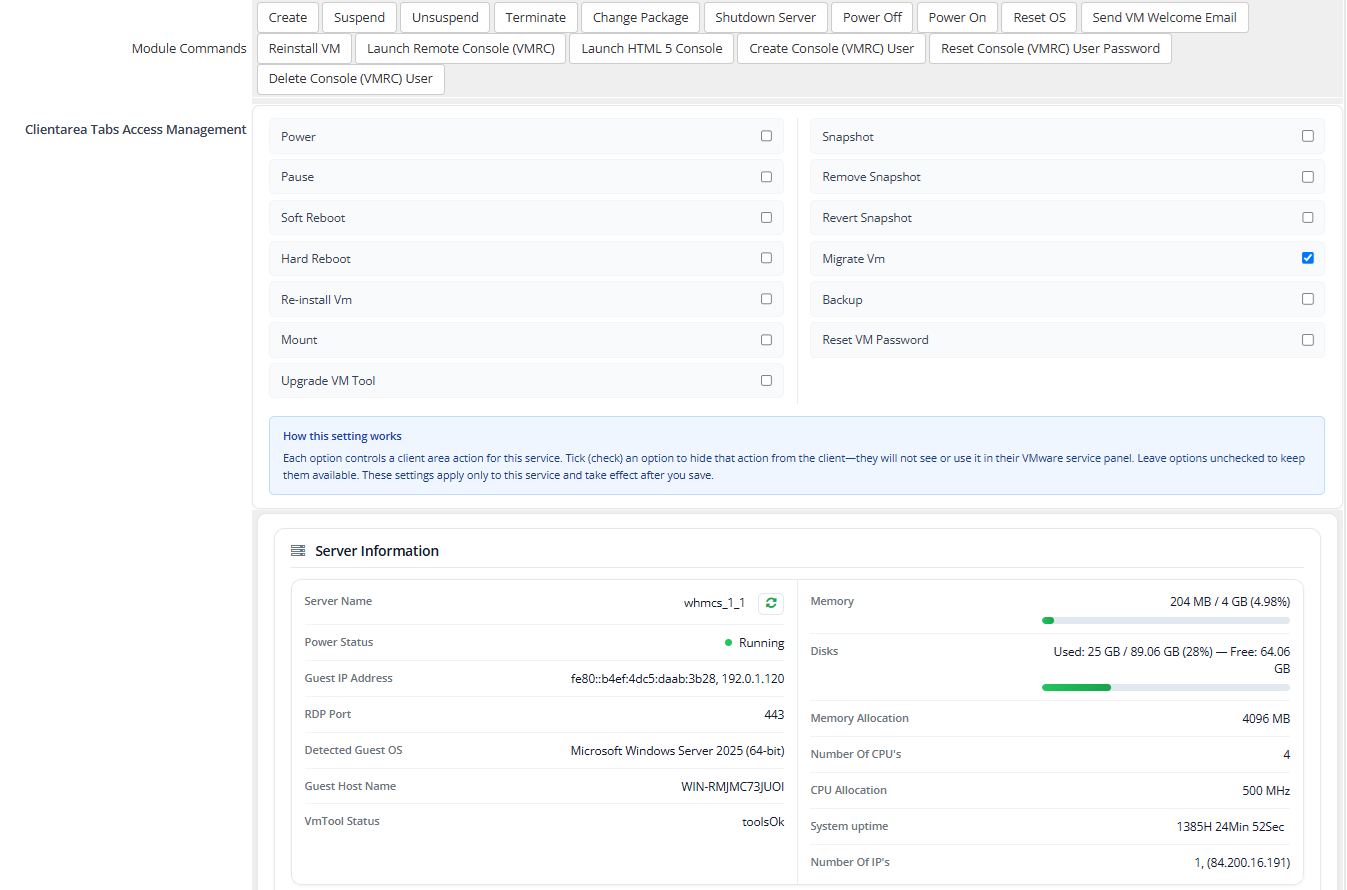
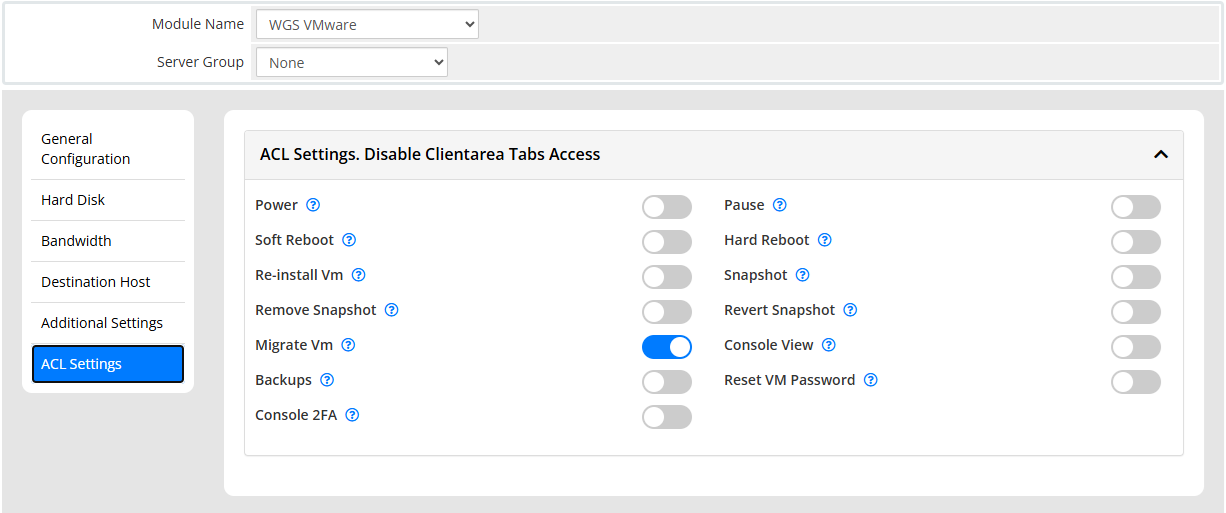
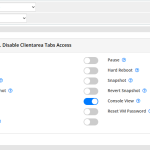
Control client area permissions by allowing or restricting specific VM management features for individual services.

Backup Management
Allow customers to create, schedule, manage, and restore VM backups, ensuring data protection and quick recovery when needed.

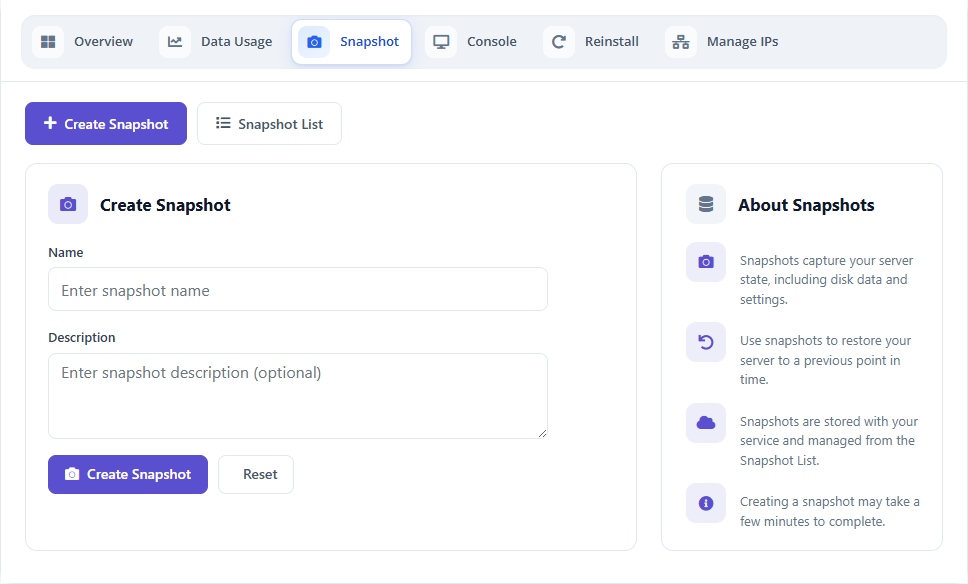
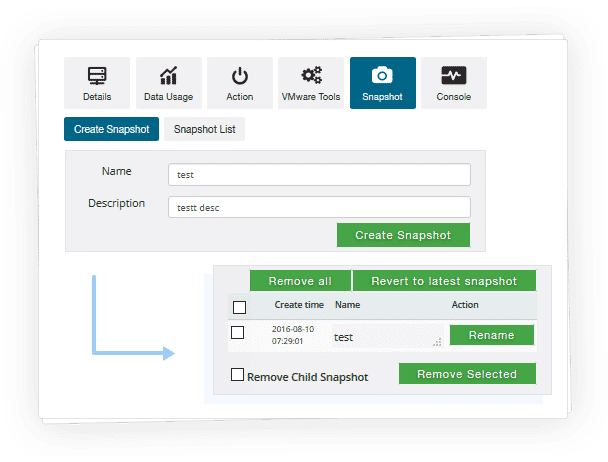
Snapshots Management
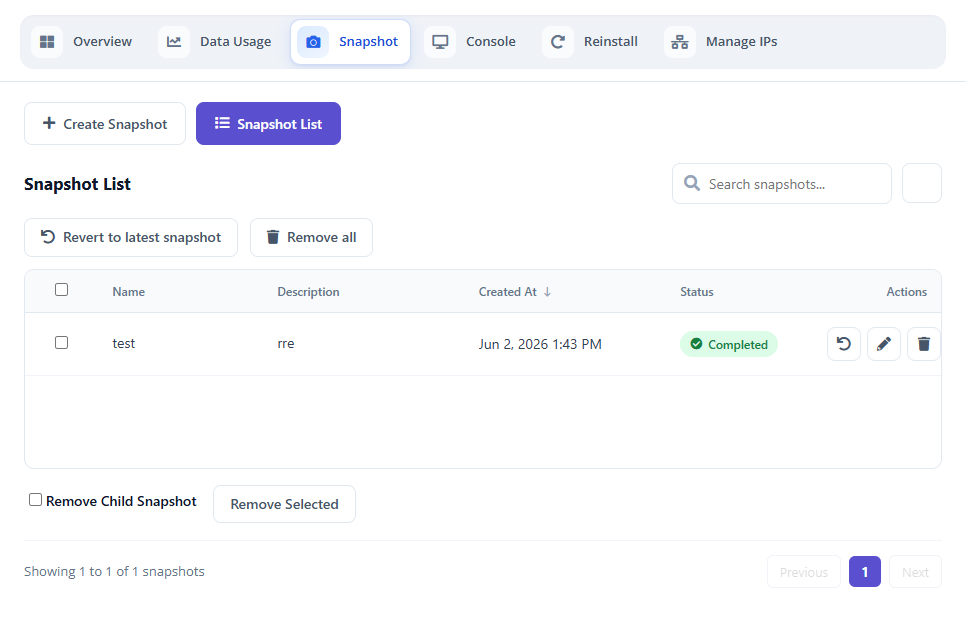
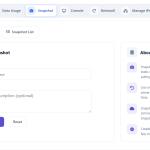
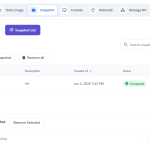
Create, restore, and manage VM snapshots with ease to protect data and quickly recover previous states.

VM user management
Manage VMRC user access by creating permissions and controlling secure remote console access for virtual machines.
Benefits to Admin and their Clients
Admin
- Create/Suspend/Unsuspend/Terminate Server
- Change Package – Supports Configurable Options
- Reset Password
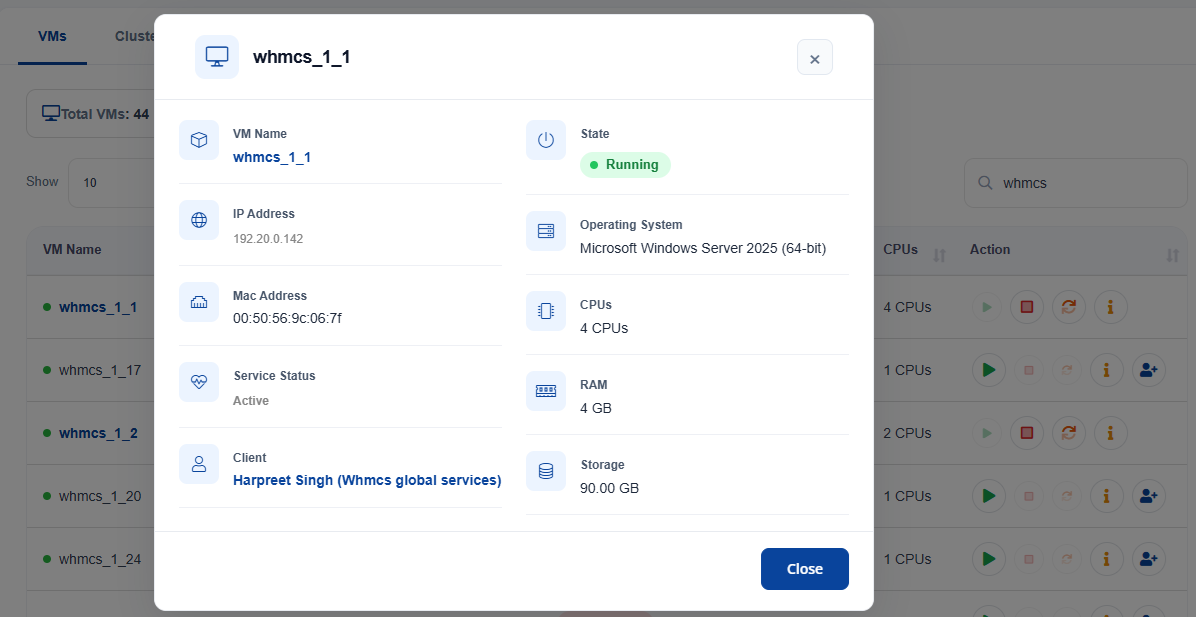
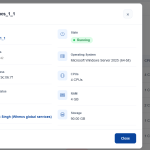
- Boot/Reboot/Stop/Shutdown Server/Display VM Detail
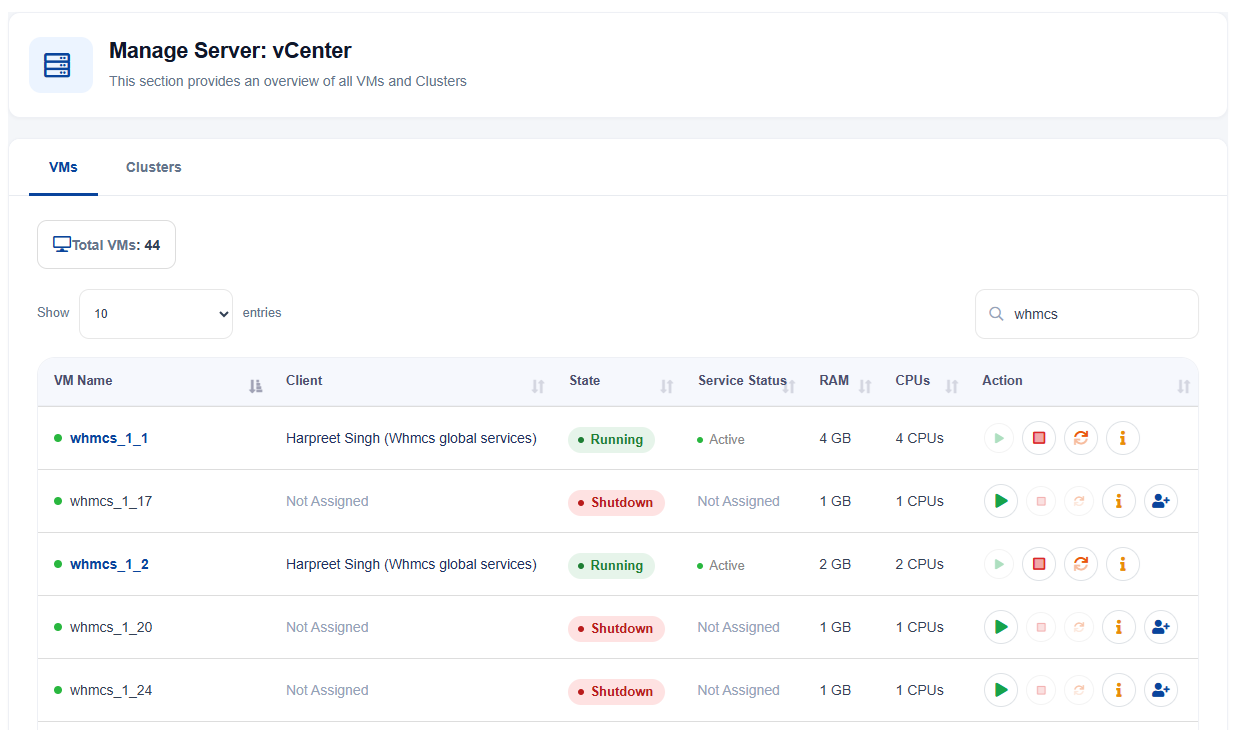
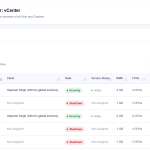
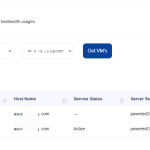
- All VMs list with power management actions like Start/Stop/Reboot and Assign VM
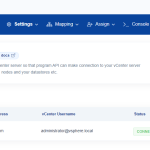
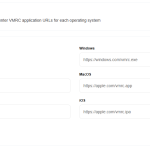
- VMRC Configuration
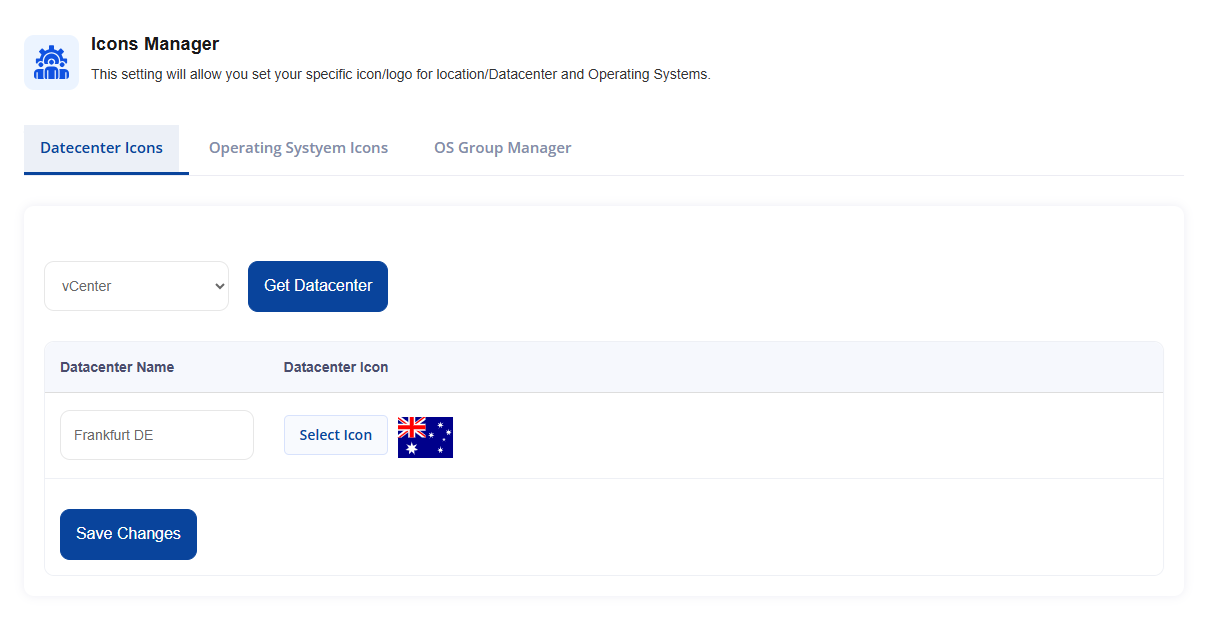
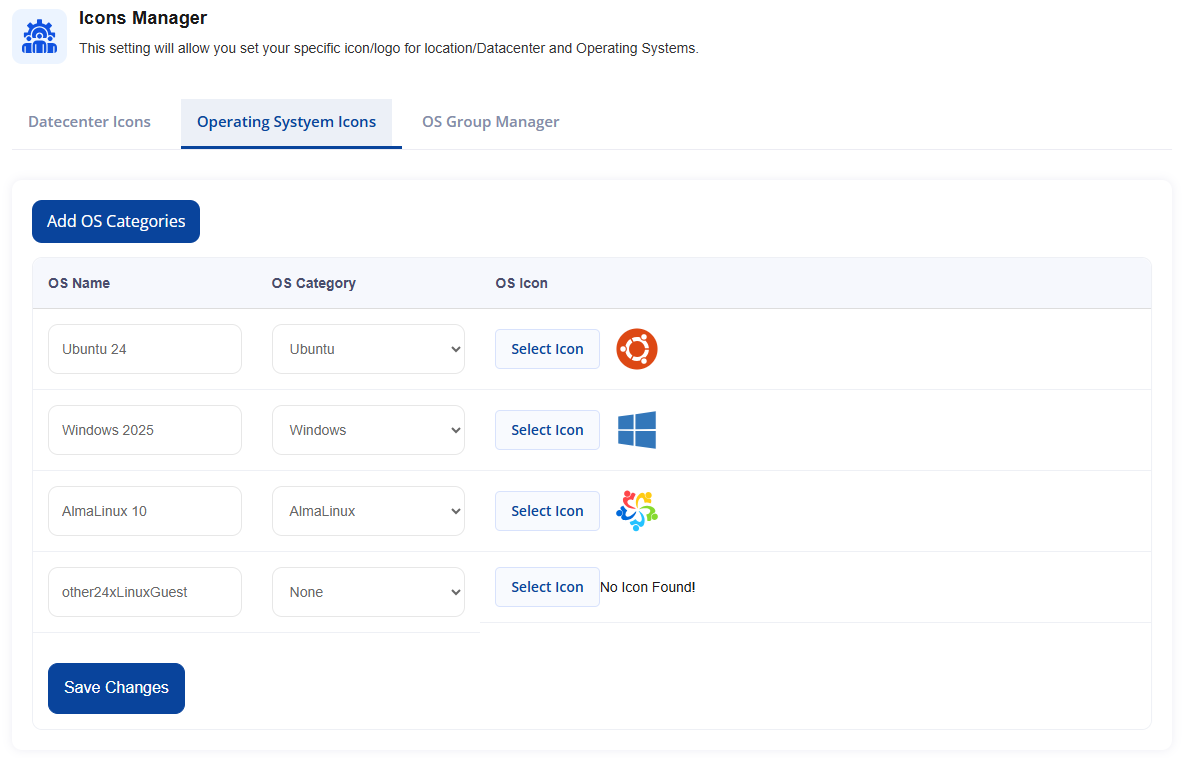
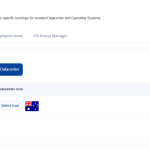
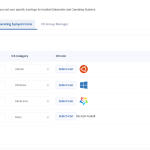
- Icon manager for Datacenters, Operating System
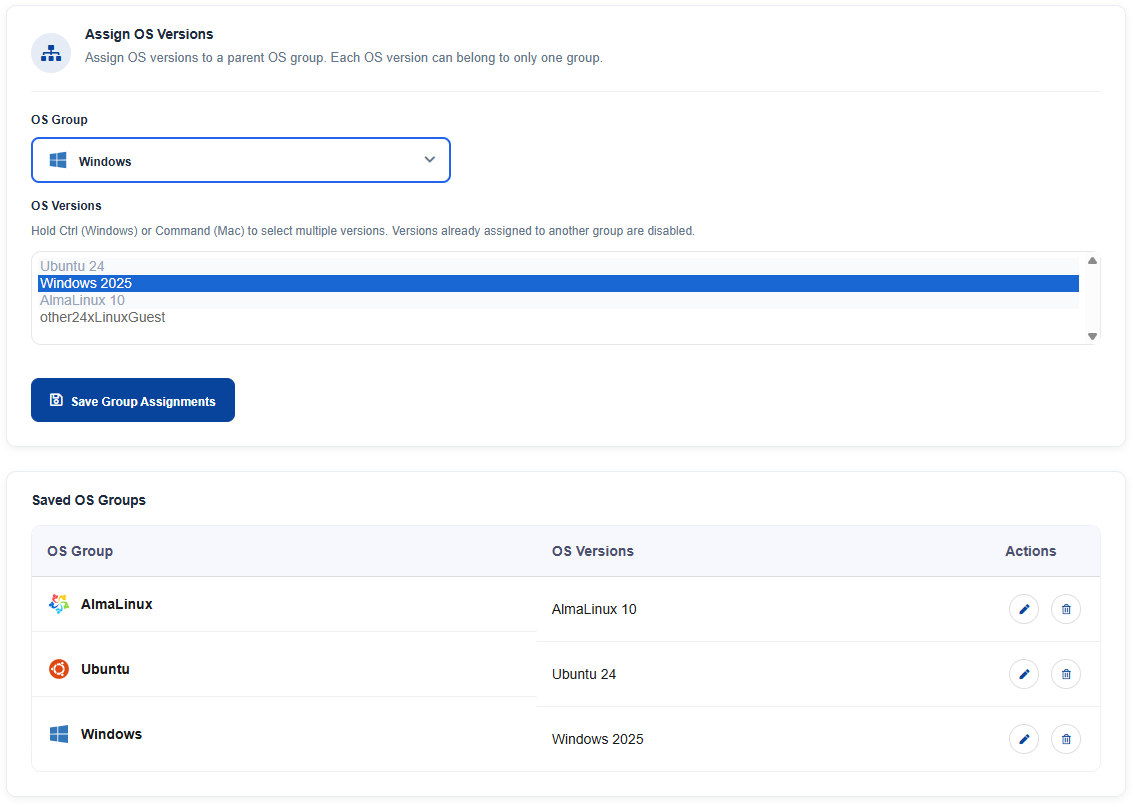
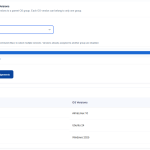
- Operating System group management
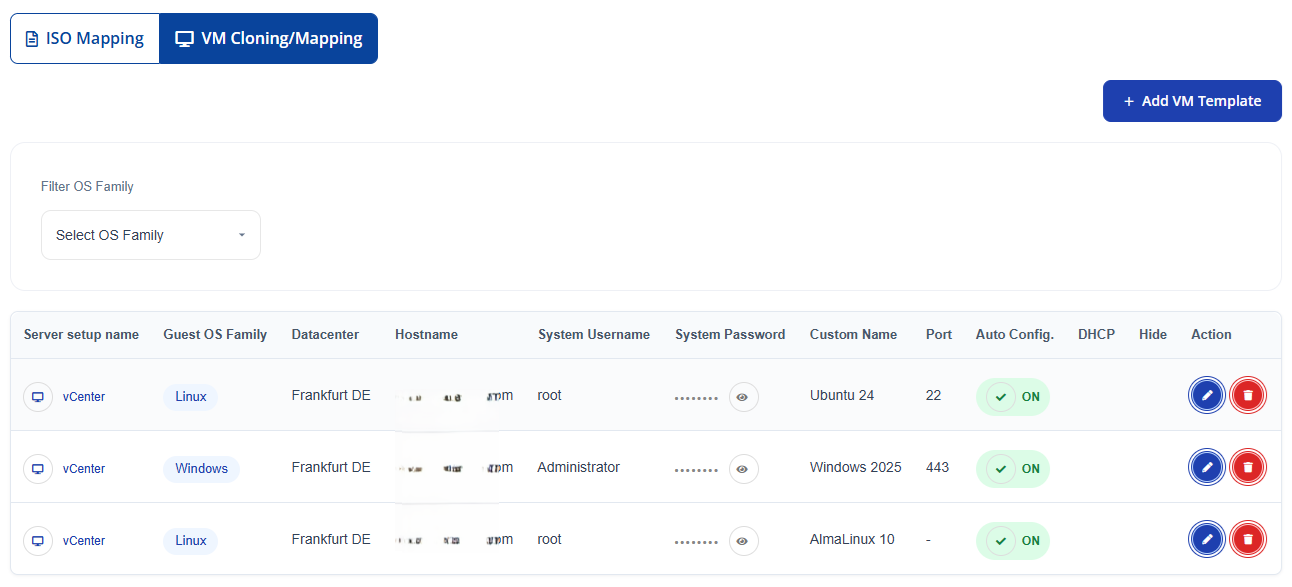
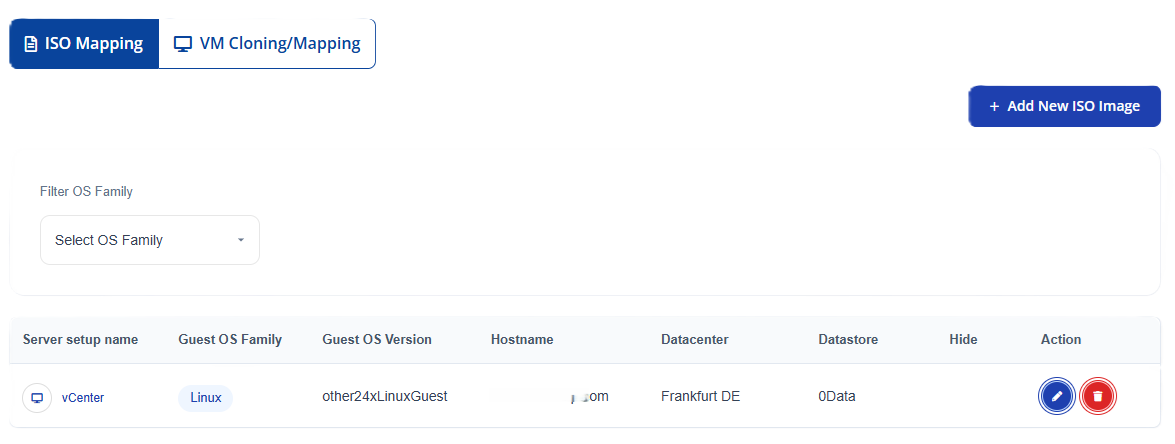
- Manage OS templates/Map OS ISO
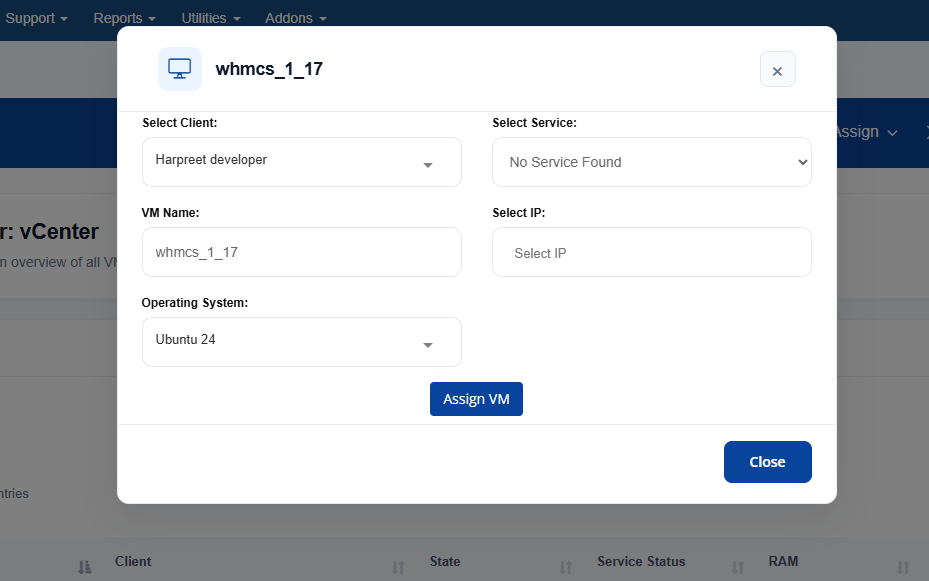
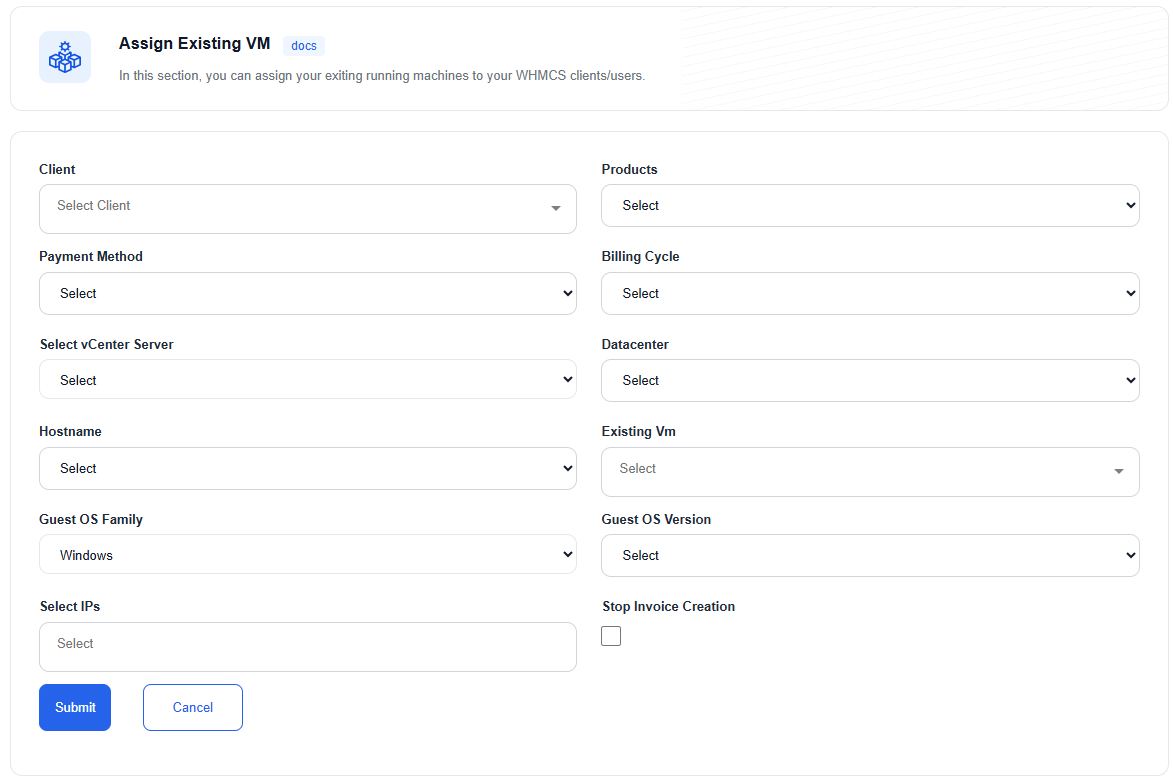
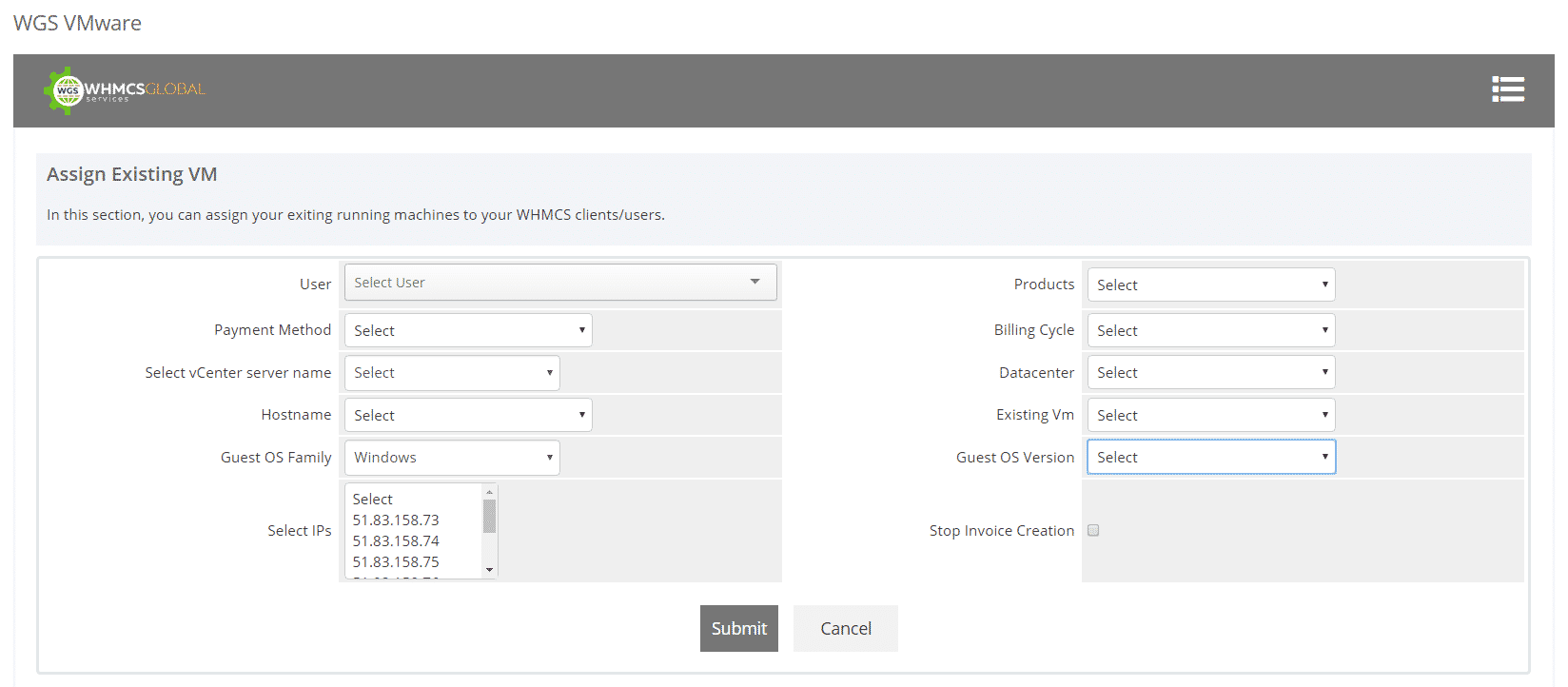
- Assign existing VM to WHMCS client
- Assign the IPs to VM
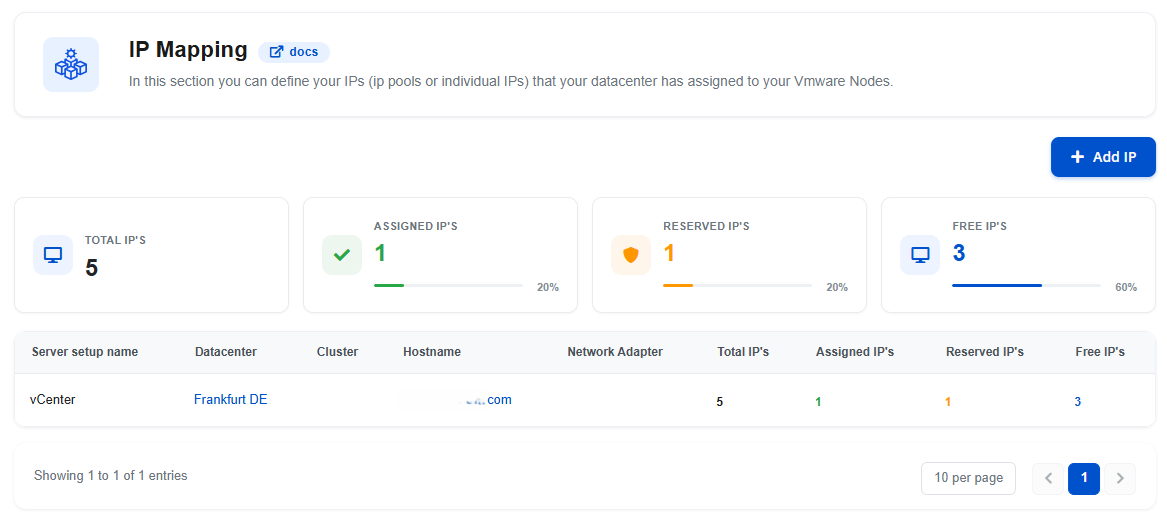
- Manage IP’s Pool
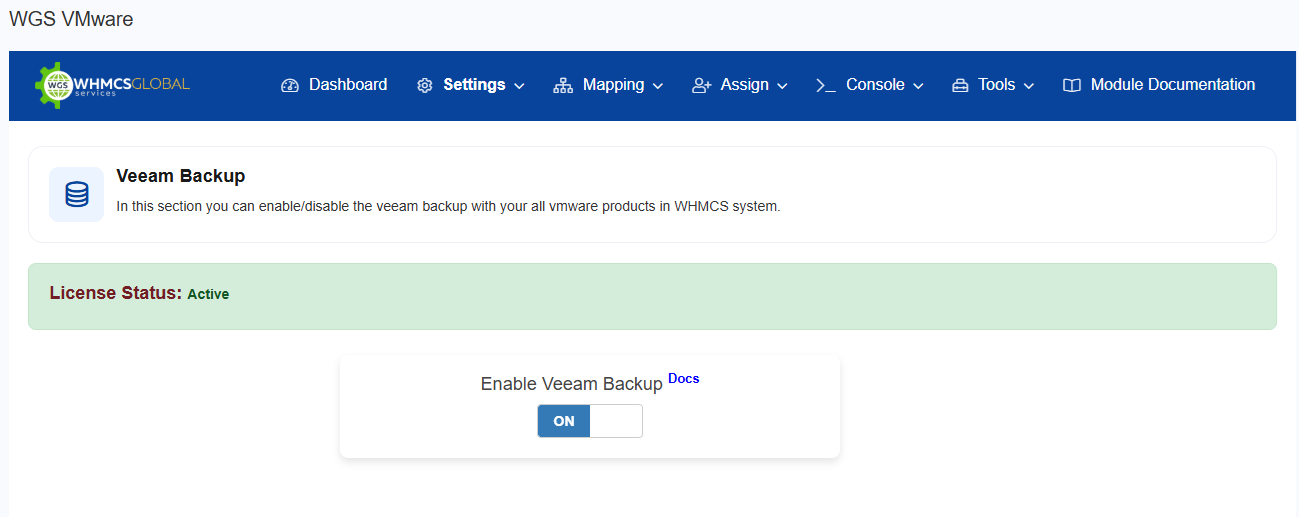
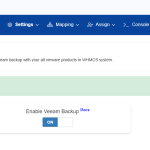
- Veeam Backup Configuration
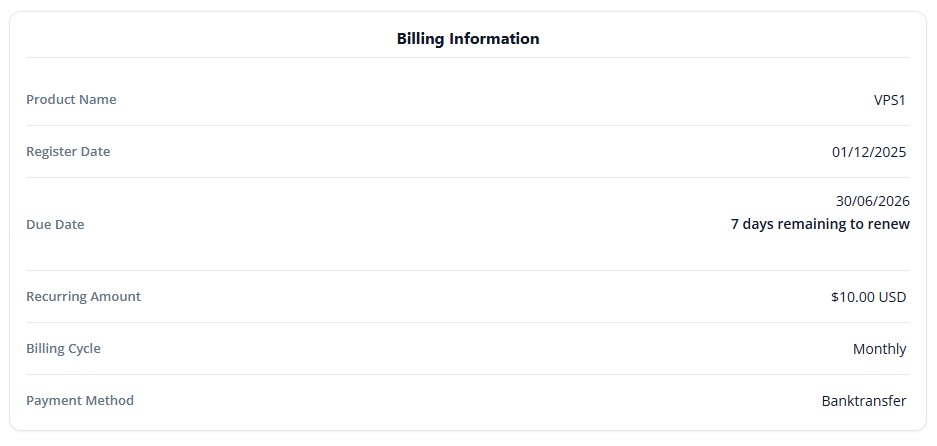
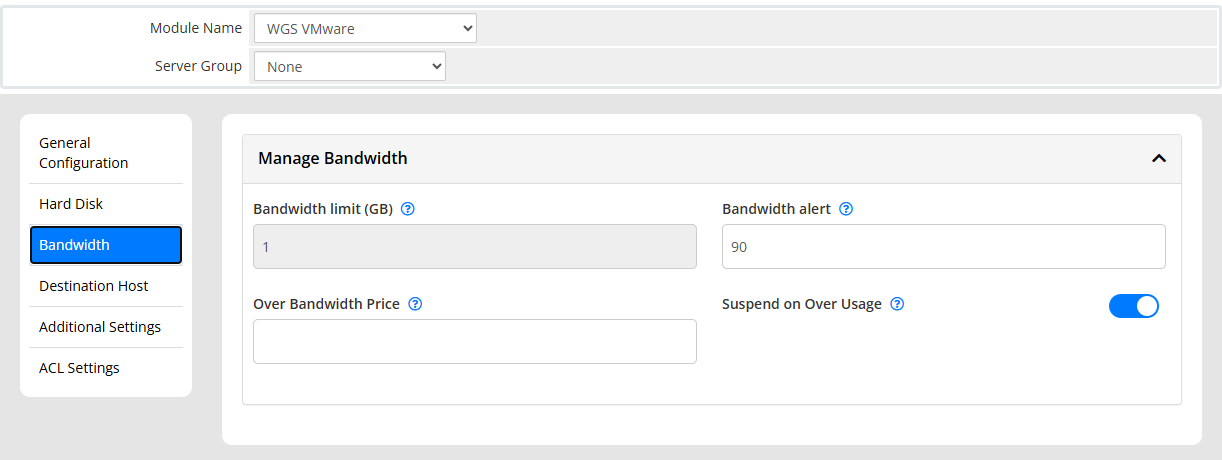
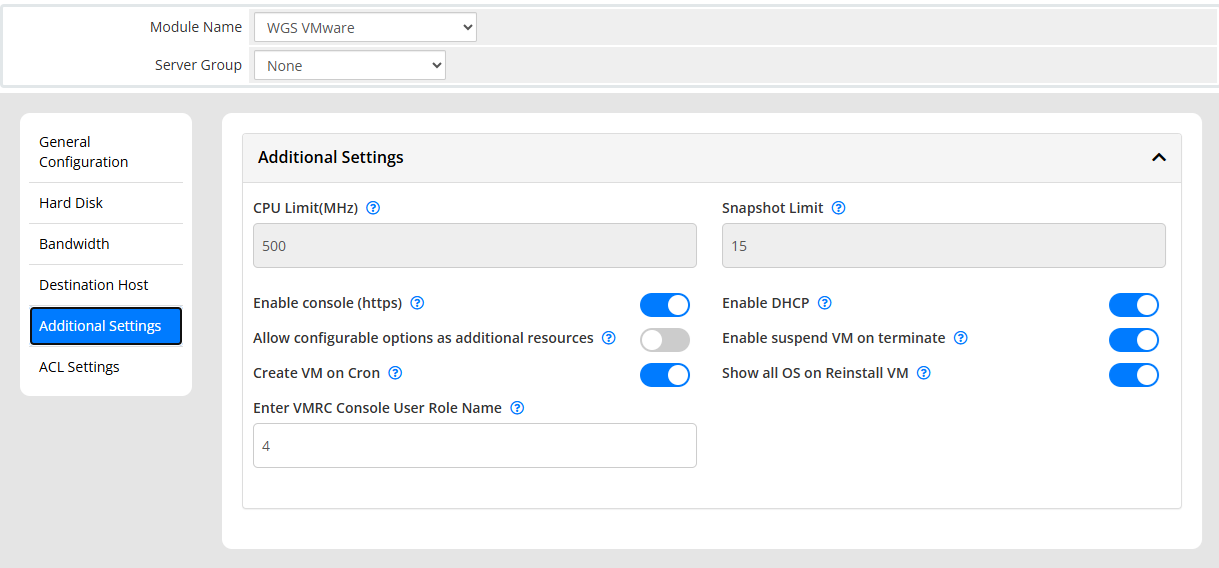
- Set Snapshot Limit and Bandwidth limit & Price
- Custom Email Templates
Client
Your questions, our answers
Yes. The module automatically creates, configures, and deploys a virtual machine as soon as a customer places an order in WHMCS.
Basic Requirements:
- WHMCS v8.7.x
- SOAP must be enabled.
- Mcrypt PHP extension.
- PHP memory_limit 512M XML,
- PHP extensions Xml reader, Xml writer must be activated.
- vCenter v6.7 or above.
- ESXI/vCenter detail (we recommend you to use vCenter detail).
- CA Certificates Should be Installed on ESXi Host
- ESXi SSH detail is not required.
vCenter/VMware Requirements:
- VM template must be created for each OS (which you want to sell) on your vCenter.
- The current version of VMware tools must be installed on the VM template.
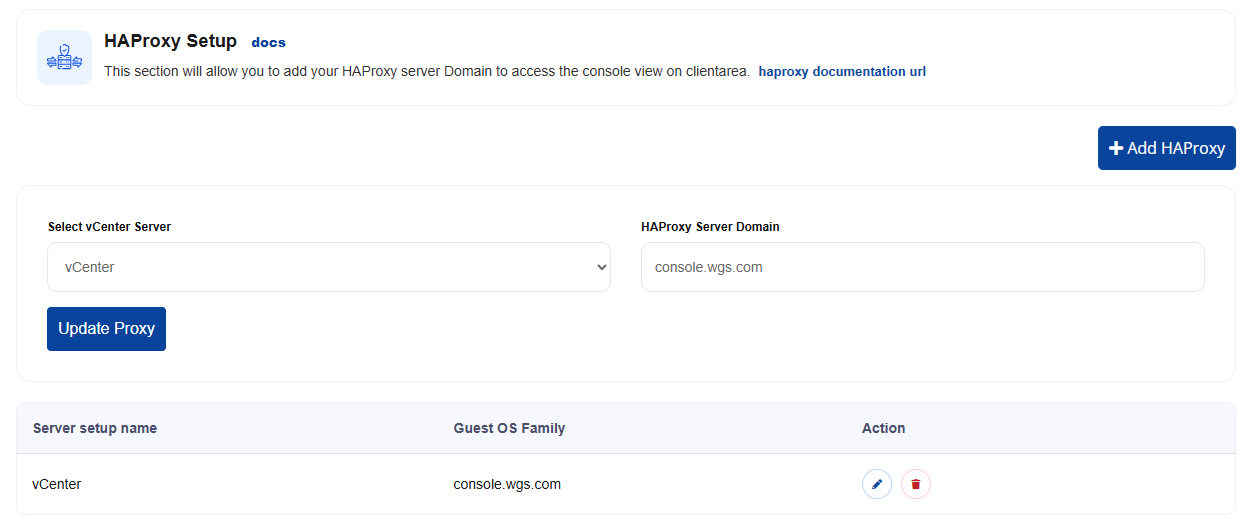
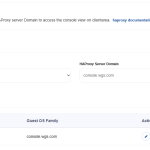
- HAProxy server must be installed to access the console
Note.
- VM template creation is not part of the module. You can create VM templates yourself or can buy our VM template creations service.
- HAProxy installation is not part of the module. You can install it yourself or buy our HAproxy installation/setup service.
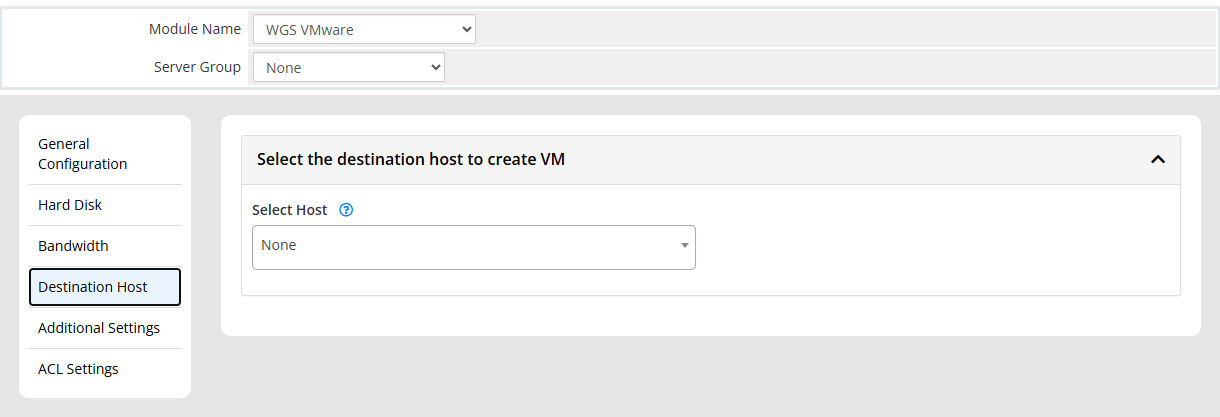
To make the secure HTML5 console access SSL must be installed on ESXi server. If you have more ESXi servers then it is very hard to install SSL on each ESXi host. That’s why you have to install HAproxy server which will communicate with ESXi host and make the websocket connection between your WHMCS and ESXi host.
- A Linux Operating System
- A public IP
- A Fully qualified domain name with HTTPS
- Valid SSL must be installed
- All latest Windows OS versions like (Windows 2010, 2012, 2016, 2020, 2022 & Latest)
- CentOS OS version like (CentOS7, CentOS8)
- Ubuntu OS versions like (Ubuntu 16.04 , 18.04, 20.04, 22.04)
- Latest Almalinux
- Latest Debian
- Latest CloudLinux
- MacOS (only provisioning with ISO mapping. Auto OS provisioning not support)
To download the vSphere web client, you need to first put your installed ESXI IP/Hostname in your browser. Once the page is loaded you will get the link to download “Download vSphere Client”.
VMware module works with both vCenter and ESXI. There are some restrictions with ESXI like cloning, migration etc. So we recommend you to use vCenter detail. If you don’t want features like cloning and migration then you can use ESXI details.
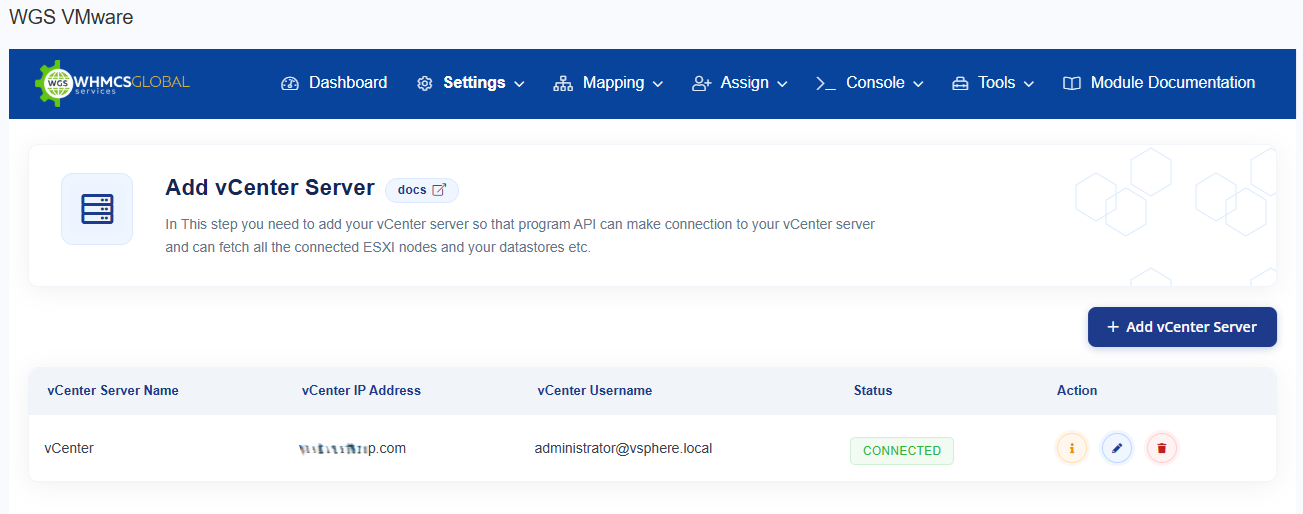
ESXi server is the most important part of vSphere. ESXi is the virtualization server. All the virtual machines or Guest OS are installed on ESXi server. To install, manage and access those virtual servers which sit above of ESXi server, you will need other part of vSphere suit called vSphere client or vCenter. Now, vSphere client allows administrators to connect to ESXi servers and access or manage virtual machines. vCenter server is similar to vSphere client but it’s a server with more power. vCenter server is installed on Windows Server or Linux Server. VMware vCenter server is a centralized management application that lets you manage virtual machines and ESXi hosts centrally. vSphere client is used to access vCenter Server and ultimately manage ESXi servers. You can easily clone existing virtual machine in vCenter server. It is therefore another important part of vSphere package. You have to buy vCenter license separately.
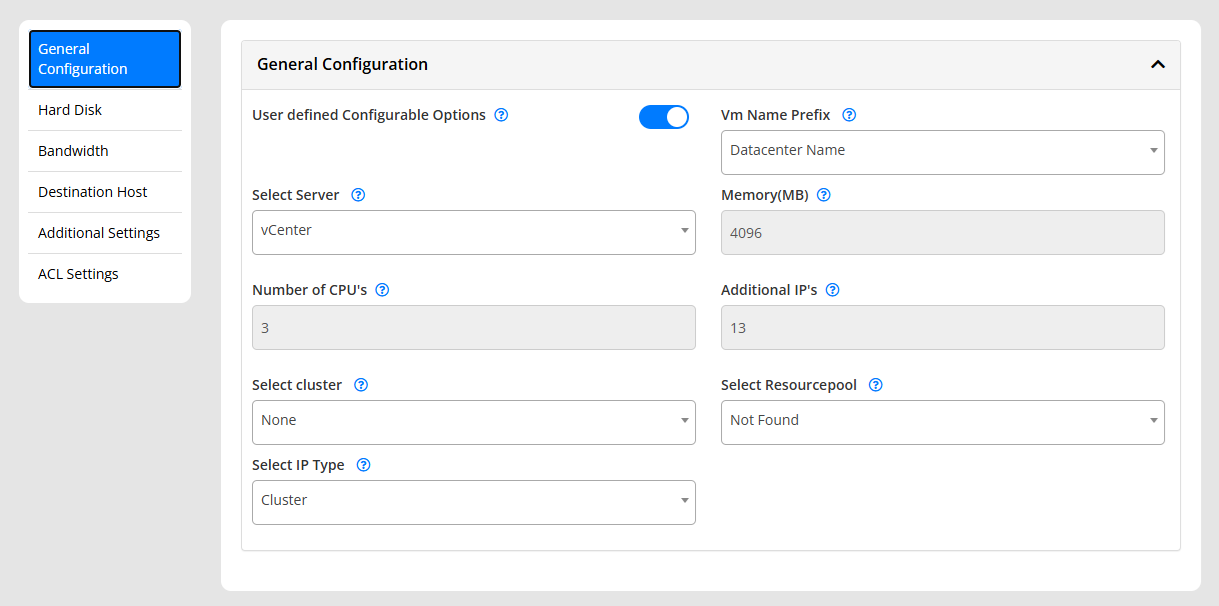
VMware module works with both existing VM and template. You have to create the different – 2 OS VM with limited configuration. Once users choose the Server configuration based on their requirements we will customize the server configuration while provisioning the VM.
Yes, we are providing the feature in our addon to assign the existing VM to your client.
Yes, we are providing the feature in our VMware server module to assign the existing VM to old / existing client service.
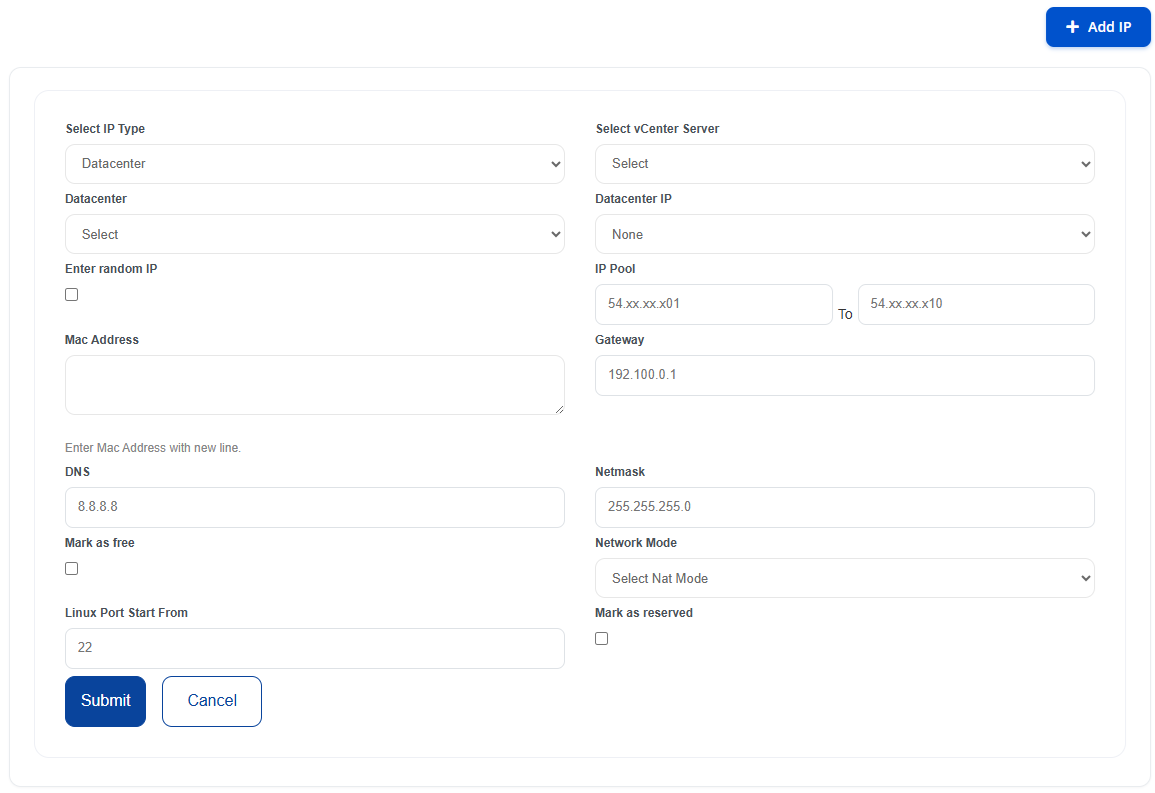
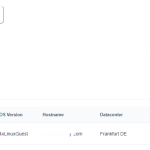
In our VMware addon, we are providing the feature to create the IP pool. You can create the IP pool with specific vCenter, Hostname and Datacenter. During the creation of VM, module will pick the free IP from IP pool with specific vCenter, Hostname and Datacenter and then assign to VM.
Yes you can add the Mac address in IP pool section in addon. While creating the VM our module will pick from there.
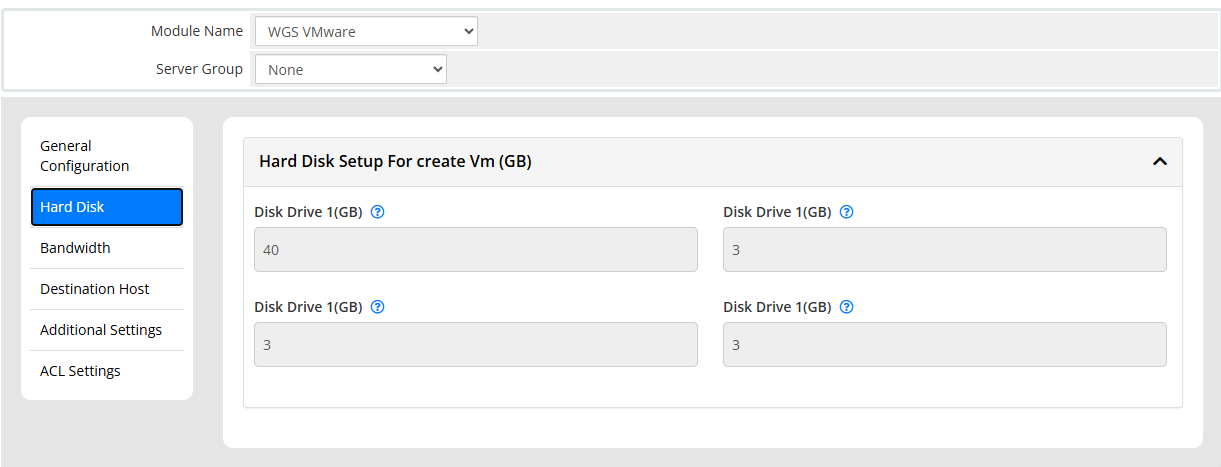
No, module creates only single disk. With product configuration there are options to enter value upto 4 disks but module merge and create a single disk with VM.
Yes, A DSR-based load-balanced routing feature is added in our module.
Yes, our module support Veeam Backup. To use it you have to purchase product addon service for Veeam backup with your purchased VMware module license.
Yes. ACL Groups allow you to enable or disable specific client area features for individual products or services.
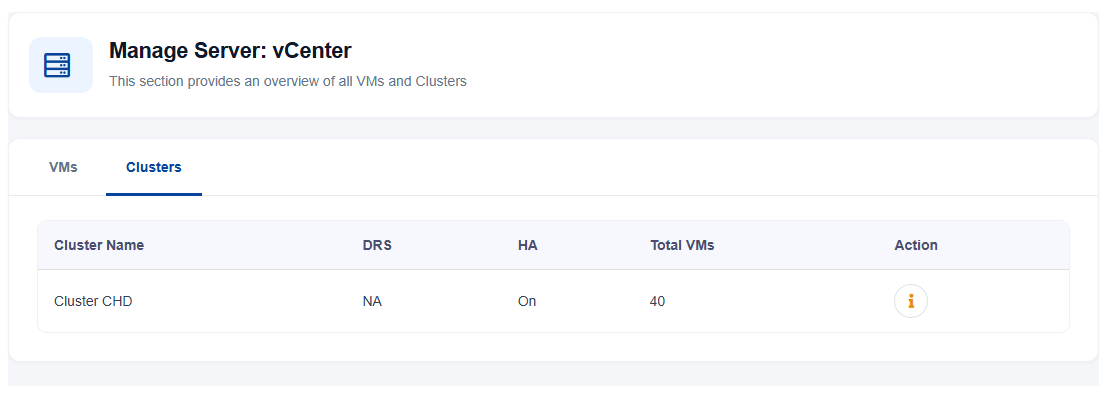
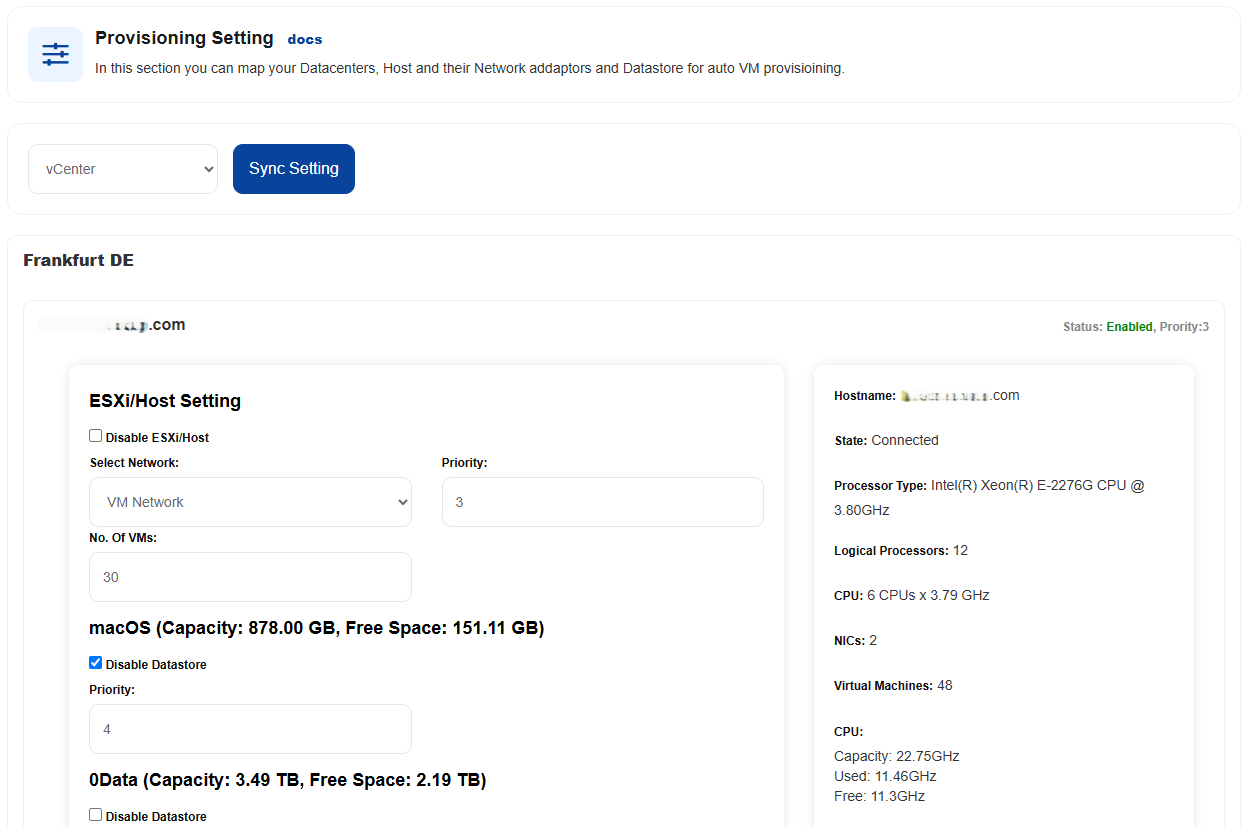
Yes. You can assign products to specific VMware clusters and automatically deploy VMs to the selected cluster.
Yes, admin and customers can reset VM passwords.