Key Takeaways
- The WHMCS login page uses a template-based system – all customization happens inside a custom copy of the default theme, never the original
- You can customize the login page by editing the template file, header/footer, CSS stylesheet, and logo – no advanced coding needed
- The admin login page runs on a completely separate theme system from the client area and must be customized independently
- For the fastest result with zero coding, a premium WHMCS theme like ClientX handles login page branding out of the box
- You can embed a WHMCS login form directly on your main website so clients never leave your primary domain to sign in
- Renaming your admin directory is a simple but effective security step that makes the admin login harder to find for bots
- You can embed a WHMCS login form directly on your main website so clients never leave your primary domain to sign in
Every WHMCS installation comes with the same default WHMCS login page. Your clients see it. Your competitors use it. And it tells visitors everything about your brand.
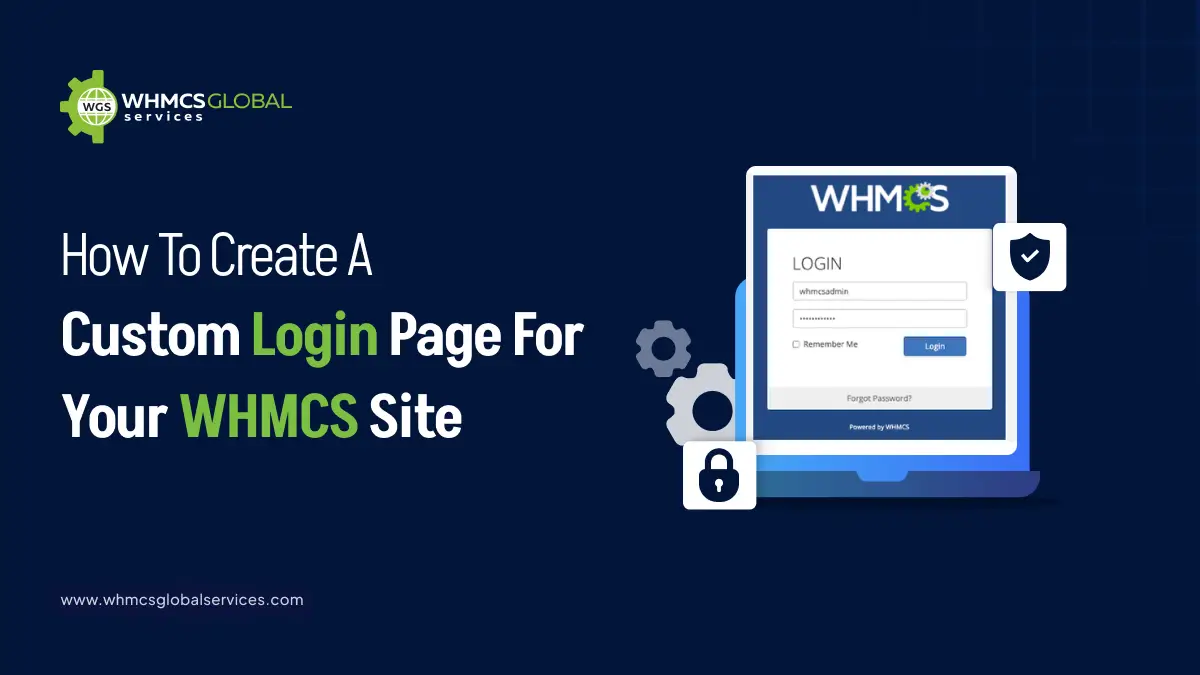
If you want your WHMCS login page to reflect your business identity – your logo, your colours, your professionalism – this guide is for you. We’ll walk you through exactly how to customize the WHMCS login page step by step, from editing template files to using a ready-made premium theme, so your clients always know they’re in the right place the moment they land on your portal.
Why Customize Your WHMCS Login Page?
The login page is often the first authenticated touchpoint a client experiences with your platform. A generic login page signals “off-the-shelf.” A branded one signals professionalism and trust. Here are the key reasons to invest time in customization:
Brand consistency: Your logo, colours, and typography should follow clients seamlessly from your marketing website into your client portal, creating a unified experience.
Trust and credibility: A polished, on-brand login page reassures clients they are in the right place. It reduces hesitation and builds confidence in your business.
Reduced confusion: Clients who see a familiar brand identity are less likely to think they have navigated to the wrong page or fallen victim to a phishing attempt.
Competitive differentiation: If every competitor uses the same default WHMCS appearance, a thoughtfully branded login page immediately sets you apart.
Flexible integration: WHMCS supports embedding a login form directly on your main marketing website, so clients never have to leave your brand ecosystem to sign in.
(Source – WHMCS Login Page)
How to Customize Your WHMCS Login Page?
WHMCS uses a template-based system for its client area, meaning the visual layout of every page, including the login page, is controlled by editable template files. The golden rule of customization is to always work inside a custom copy of the default theme, never in the original theme files, which can be overwritten during WHMCS updates.
1. Create a Custom Theme: Start by making a copy of the default client area theme and giving it a unique name. This is the first and most important step in WHMCS theme development, as it creates a safe working environment for all your customizations. Changes made here are safe from future WHMCS updates, which only affect the original default theme files.
2. Edit the Login Page Template: Inside your custom theme, locate the login page template file. This file controls the structure and layout of the login form, the email field, password field, sign-in button, and “Forgot Password” link. You can rearrange the layout and add custom HTML elements around the form as needed.
3. Customize the Header and Footer: The header and footer template files wrap every page in your client area, including the login page. This is where you place your logo, navigation, and brand colours. Be careful to preserve all the built-in variables and script includes that WHMCS requires for proper functionality.
4. Apply Your Brand Styles with CSS: WHMCS is built on the Bootstrap framework, making it easy to apply custom styles. Create a separate stylesheet for your brand and load it through your custom header template. Use it to set your brand’s colours, fonts, button styles, background, and any other visual elements on the login page.
5. Upload Your Logo: Upload your company logo to the designated images folder within your custom theme. The logo is typically displayed in the top-left corner of every page. You can also specify a logo through the WHMCS admin settings panel under General Settings, which is the simpler option if you don’t want to handle files directly.
You can set your custom logo through the Setup Wizard or by navigating to Configuration → System Settings → General Settings under the General tab.
6. Activate Your Custom Theme: Once your changes are ready, log in to your WHMCS admin area and go to Configuration → System Settings → General Settings. Select your custom theme from the Template dropdown and save. Open the login page in a browser to verify everything looks and works as expected.
7. Embed a Login Form on Your Main Website (Optional): WHMCS provides ready-made integration code that lets you place a client login form directly on your main marketing website. This means clients can sign in without ever navigating away from your primary domain. You can find this embed code in your admin area under Configuration → Integration Code.
Using a WHMCS Theme with a Pre-Built Custom Login Page
If you’d rather not build a login page from scratch, the WHMCS Marketplace offers a wide selection of premium themes that include professionally designed, branded login pages right out of the box. These themes are built on a customizable WHMCS client area template, allowing you to control the look and feel of your client portal with ease. They typically offer visual settings panels, logo uploaders, and colour scheme controls, all manageable from within the WHMCS admin area without touching any template files.
Premium themes typically allow you to upload your logo, switch colour palettes, and toggle page sections directly from an admin settings panel, no FTP access or file editing required. This makes them the fastest path to a branded login page, especially for teams without dedicated web developers.
WHMCS Admin Area Login Page Customization
The admin login page operates on an entirely separate theme system from the client area. Changes to your client-facing login page have no effect on the admin login, and vice versa. Customizing the admin login requires working with the WHMCS admin theme, which is independent and managed separately.
Create a Custom Admin Theme: The default admin theme is called Blend. WHMCS recommends making a copy of this theme under a new name before making any changes. This keeps your customizations intact when WHMCS releases updates, which would otherwise overwrite the original Blend theme files.
What You Can Customize: Within your custom admin theme, you can modify the header and footer that appear on every admin page, replace the logo displayed in the top corner, change background colours and button styles through a custom stylesheet, and adjust the navigation menu and sidebar appearance. While WHMCS doesn’t expose a dedicated admin login template the same way the client area does, styling changes made through the header template and custom CSS will affect the visual appearance of the login screen.
Apply the Theme to Admin Users: Once your custom admin theme is ready, you can activate it for individual admin users. Navigate to Setup → Staff Management → Administrators, edit each user, and select your custom theme from the Template dropdown. This allows different staff members to use different admin themes if needed.
Rename the Admin Directory for Security: Beyond visual customization, WHMCS recommends renaming the default admin directory to a non-obvious, custom name. This makes it harder for bots and attackers to locate the admin login page in the first place, a simple but effective security improvement that requires no design work at all.
Conclusion
Customizing your WHMCS login page, both the client-facing portal and the admin area, is a worthwhile investment in your brand and your clients’ experience. The core workflow is straightforward: work in a copy of the default theme, apply your branding through CSS and logo files, and activate the theme through the WHMCS admin settings.
If you want a head start, a premium marketplace theme handles most of the design work for you, often with no file editing required.
Source – https://developers.whmcs.com/advanced/admin-area/
https://docs.whmcs.com/9-0/customization/client-area-customization/client-area-homepage-panels/