
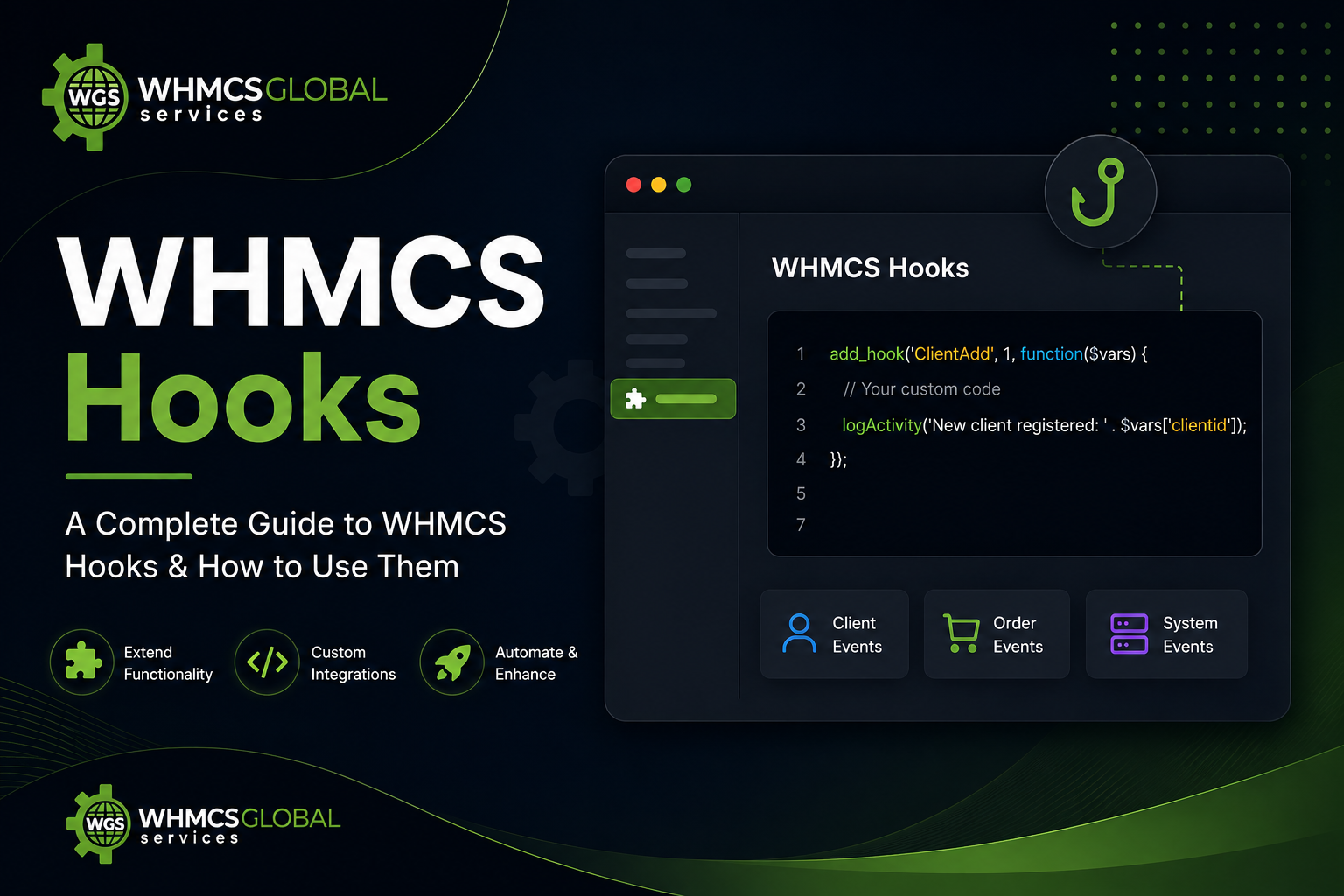
A WHMCS hook is a PHP callback registered with add_hook(). WHMCS runs it when a named event fires (invoice paid, order placed, client login). Hook files live in /includes/hooks/ or inside a module, so upgrades do not overwrite them.
WHMCS already has an answer for this. Hooks let you extend the platform with your own PHP logic that fires automatically on internal events, no core files touched, ever. This guide walks through what hooks are, how to build them, real examples you can adapt, and the debugging habits that will save you hours in 2026.
Key Takeaways
- Hooks are the safe way to customize WHMCS without touching core code.
- They fire automatically when specific internal events occur.
- add_hook() is the function used to register any custom hook logic, allowing you to execute your custom code.
- Every hook is built from three parts: a hook point, a priority, and a callback.
- The $vars array carries the event data your hook needs to work with.
- Certain hook points let you return values to override WHMCS’s default behaviour.
- Hook files typically live inside /includes/hooks/.
- Hooks can also be bundled inside modules, in which case they only run while the module is active.
- Notifications, validation rules, and UI tweaks are all natural fits for hooks.
- Debugging a hook comes down to three checks: did the file load, did the event trigger, and did the code run.
Most-used WHMCS hook points
Jump to a category , or copy the add_hook() pattern below. For the full vendor list, use the official WHMCS Hooks Reference (do not duplicate that index here).
| Hook point | Fires when | Typical use |
|---|---|---|
| OrderPaid | An order is paid | Slack/CRM notice, extra provisioning |
| InvoiceCreated | An invoice is created | Custom line items, PDF tweaks |
| InvoicePaid | An invoice is marked paid | Unsuspend, send extras |
| ClientAdd | A client account is created | CRM sync, welcome workflow |
| ClientLogin | A client signs in | IP checks, audit log |
| AdminAreaFooterOutput | An admin page renders | Inject admin UI or scripts |
| ClientAreaPage | A client-area page loads | Widgets, notices |
| ClientAreaFooterOutput | Client area footer output | HTML/CSS injection |
| DailyCronJob | Daily cron runs | Cleanup, reports |
| ShoppingCartValidateProductUpdate | Cart product validation | Block or adjust orders |
| TicketOpen | A ticket is opened | Routing, Slack |
| AfterModuleCreate | Provisioning create succeeds | Follow-up automation |
What Exactly Are WHMCS Hooks?
A WHMCS hook is custom PHP code that runs automatically whenever a specific event happens inside the platform, without you having to modify anything in WHMCS itself. When a hook point fires (say, an invoice gets paid, or an admin signs in), WHMCS checks for any callbacks registered against that event and executes them in order of priority.
That’s what makes hooks the proper, supported way to customize the system. Because your code sits in its own file, either under /includes/hooks/ or packaged inside a module, it’s fully shielded from whatever changes ship in the next WHMCS release.
In other words, your work survives upgrades. Compare that to hacking core files directly, where every new release risks overwriting your edits, triggering merge conflicts, or breaking things silently.
Hooks are also the foundation of a healthy module ecosystem. Provisioning modules, registrar modules, and addon modules can all register their own hooks, which only activate when the module is enabled.
How Do WHMCS Hooks Actually Work?
Everything runs through the add_hook() function. The basic structure looks like this:
add_hook('HookPointName', priority, function($vars) {
    // your code here
});
Hook Point Name
This is simply the name of the event you are listening for, things like OrderPaid, InvoiceCreated, or AdminAreaFooterOutput. Names are case-sensitive, and a single typo means your hook will fail silently without any error.
Priority: This integer decides the order in which multiple hooks on the same event run, lower numbers go first, so a hook set to priority 1 always executes before one set to 50. Ten is the standard default; reserve 1 for logic that absolutely must run early, and push cleanup or logging tasks toward 100.
The Callback Function You can register either an anonymous closure or a named function. Closures work well for short, self-contained logic, while named functions are the better choice once a hook grows complex enough that you will want to test or maintain it separately.
The $vars Array: WHMCS hands your callback a $vars array on every call. What’s inside depends entirely on the hook point, an invoice-related hook, for instance, might include invoiceid, userid, and status. During development, it’s worth dumping this with print_r() or logging it via logActivity() just to see what you are actually working with.
Return Values: Some hook points allow you to override WHMCS’s default behavior by returning data from your callback. For example, output hooks let you inject HTML by returning a string. Check the official WHMCS Hooks Reference for which hook points support return values.
How to Create WHMCS Hooks?
According to the official WHMCS developer documentation, creating a hook involves two steps: creating the hook file in the right location, and adding the hook function to it. Here’s the full process with practical details added.
Step 1 – Create the Hook File
Hook files belong in /includes/hooks/, or alternatively inside a module.
{WHMCS root}/includes/hooks/helloworld.php

Or simply create the file via FTP/SFTP in /includes/hooks/.
You can also just create the file directly through FTP or SFTP.
Tip: Prefix a filename with an underscore (e.g. _helloworld.php) to temporarily stop WHMCS from executing it, handy while you are still building something out. Drop the underscore once you are ready to go live.
Step 2 – Write the Hook Function
Open your new file and add your hook code. Per the official docs, hook functions can be either named functions or closures both are fully supported.
When the hook runs, WHMCS passes a $vars array to your callback. The variables available in $vars depend on the specific hook point being invoked and the data available at that moment. Some hook points also allow you to return values in some cases; what you return can override WHMCS’s default behavior.
| Important: When using a named function, always prefix your function name with something unique to your code to prevent naming conflicts with other hooks or modules in the same installation. |
Here’s a example a hook that sends a Slack notification when an order is paid:
<?php
if (!defined('WHMCS')) {
    die('This file cannot be accessed directly');
}

add_hook('OrderPaid', 1, function ($vars) {
    $orderId         = $vars['orderid'];
    $clientId        = $vars['userid'];
    $amount          = $vars['amount'];

    $slackWebhookUrl = 'https://hooks.slack.com/services/YOUR/WEBHOOK/URL';

    $message = [
        'text' => " New order paid! Order #$orderId by Client #$clientId — \$$amount",
    ];

    $ch = curl_init($slackWebhookUrl);
    curl_setopt($ch, CURLOPT_POST, true);
    curl_setopt($ch, CURLOPT_POSTFIELDS, json_encode($message));
    curl_setopt($ch, CURLOPT_HTTPHEADER, ['Content-Type: application/json']);
    curl_setopt($ch, CURLOPT_RETURNTRANSFER, true);
    curl_exec($ch);
    curl_close($ch);
});
Note: This is a placeholder webhook only; never commit a real URL.
And the same logic written using a named function instead of a closure:
<?php
if (!defined('WHMCS')) {
    die('This file cannot be accessed directly');
}

function mycompany_notify_slack_on_order_paid($vars) {
    $orderId         = $vars['orderid'];
    $clientId        = $vars['userid'];
    $amount          = $vars['amount'];

    $slackWebhookUrl = 'https://hooks.slack.com/services/YOUR/WEBHOOK/URL';

    $message = [
        'text' => "New order paid! Order #$orderId by Client #$clientId — \$$amount",
    ];

    $ch = curl_init($slackWebhookUrl);
    curl_setopt($ch, CURLOPT_POST, true);
    curl_setopt($ch, CURLOPT_POSTFIELDS, json_encode($message));
    curl_setopt($ch, CURLOPT_HTTPHEADER, ['Content-Type: application/json']);
    curl_setopt($ch, CURLOPT_RETURNTRANSFER, true);
    curl_exec($ch);
    curl_close($ch);
}

add_hook('OrderPaid', 1, 'mycompany_notify_slack_on_order_paid');
Note: This is a placeholder webhook only; never commit a real URL.
Check whether the function name is prefixed with mycompany_ –this follows the official recommendation avoid naming conflicts.
Step 3: Save and Test
Save the file, then trigger the matching event in a staging environment to make sure the hook actually fires. The debugging section further down walks through confirming this via the Activity Log.
Complete WHMCS Hook Categories Reference
| Category | Description |
|---|---|
| Addon | Addon module lifecycle events, activation, deactivation, upgrades |
| Admin Area | Admin panel page loads, sidebar items, menu output |
| Authentication | Admin and client login/logout events |
| Client | Client account creation, editing, deletion, status changes |
| Client Area Interface | Client-facing page output, navigation, content injection |
| Contact | Sub-account and contact add/edit/delete events |
| Cron | WHMCS daily automation cron job start/end events |
| Domain | Domain registration, renewal, transfer, and status events |
| Everything Else | Miscellaneous events that don’t fit other categories |
| Invoices and Quotes | Invoice creation, payment, cancellation, and quote events |
| Module | Provisioning module create, suspend, terminate, and upgrade events |
| Output | HTML output injection points across admin and client areas |
| Products and Services | Product and service lifecycle events |
| Registrar Module | Domain registrar-specific events (WHOIS, nameservers, etc.) |
| Service | Hosted service status changes and renewals |
| Shopping Cart | Cart checkout steps, product validation, and order submission |
| Support Tools | Network tools and other support utility events |
| Ticket | Support ticket open, reply, close, and status change events |
| User | User account events, separate from legacy client events |
For the full list of named hook points within each category, see the WHMCS Hooks Reference.
How do I Debug a WHMCS Hook That Is Causing Issues?
Hooks not firing is among the common frustrations for WHMCS developers. Here’s a systematic debugging approach.
When creating a hook, there are three core questions you need to answer: Was the hook file loaded? Was the hook point triggered? Did the code inside the hook actually execute? The official WHMCS Troubleshooting & Debugging Hooks guide structures the debugging process around exactly these three questions. Here’s how to work through each one.
Step 1 – Check If Your Hook File Is Loading
How to do it:
- Navigate to Configuration > System Settings > General Settings > Other Tab
- Check the Hooks Debug Mode checkbox
- Click Save Changes
- Perform the action that should trigger your hook point
- Navigate to Configuration > System Logs > Activity Log
With Hooks Debug Mode enabled, WHMCS logs every hook file it loads on each page request. Check the Activity Log to confirm your file appears in the list. If it doesn’t show up, the file isn’t being picked up by WHMCS at all — check its location and filename.
| Important: Enabling Hooks Debug Mode will generate a large number of Activity Log entries. Use it only while actively debugging and switch it off immediately afterwards. |
Step 2 – Check That Your Hook Point Is Triggering
Once you know the file is loading, the next question is whether the specific hook point inside it is actually being fired. These are two separate things — a file can load without its hook point ever triggering.
In the Activity Log (with debug mode on), look for your hook point name in the log entries. For example, if you’re working with AdminAreaFooterOutput, you should see a log entry confirming that hook point was triggered. If it doesn’t appear, check that you’re performing the correct action in WHMCS that fires that particular event.
Step 3 – Check If Your Hook Code Is Executing
Once you’ve confirmed the hook point is triggering, the final question is whether your specific code inside the callback is running. The recommended approach from the official docs is to use the logActivity() function to write a log entry from inside your hook:
php
<?php

if (!defined('WHMCS')) {
    die('This hook should not be run directly');
}

add_hook('AdminAreaFooterOutput', 1, function ($vars) {
    logActivity('AdminAreaFooterOutput hook has run. Posted Vars: ' . print_r($vars, true));
});
After triggering the event, check out the Activity Log for your custom log entry. This also lets you inspect exactly what data is available in $vars at the time the hook fires — which is invaluable for development. For more on the logActivity() function, see the WHMCS Logging developer documentation.
Step 4 – Ensure Module Hooks Are Running
If your hook is inside a module rather than /includes/hooks/, there are some additional things to check.
A module hook will only run while the module it belongs to is active under Configuration > System Settings > Addon Modules. If the module is inactive, its hooks will never fire — regardless of whether the hook point itself triggers.
| Data loss warning: If a module is already active, deactivating it can result in data loss. Always back up both your files and database before deactivating any module. |
Step 5 – Ensure Hook Cache Is Refreshed After Changes
Generally, hook files in /includes/hooks/ are detected and loaded on every page load automatically. However, module hooks behave differently — they are detected at the time the module is first activated. If you add or modify a hook file after the module is already active, WHMCS may not pick up the change until you manually rebuild the hook cache.
The steps differ by module type:
| Module Type | How to Refresh the Hook Cache |
|---|---|
| Provisioning Module | Go to Configuration > System Settings > Products/Services, open the Module Settings tab for an applicable product, and click Save Changes |
| Registrar Module | Go to Configuration > System Settings > Domain Registrars, open the registrar’s settings, and re-save |
| Addon Module | Go to Configuration > System Settings > Addon Modules, open the addon’s settings, and re-save |
Common Issues Checklist
| Symptom | Likely Cause | Fix |
| File doesn’t appear in Activity Log | File is not in /includes/hooks/ | Move the file to the correct directory |
| File doesn’t appear in Activity Log | Filename starts with _ | Remove the _ prefix to enable loading |
| Hook point doesn’t appear in Activity Log | Wrong action performed | Confirm you’re triggering the correct WHMCS event |
| Hook point never fires | Misspelled hook point name | Hook names are case-sensitive check the exact name in the Hooks Reference |
| File loads but code doesn’t run | PHP syntax error in hook file | The entire file is silently skipped; check your PHP error logs |
| Module hook not firing | Module is inactive | Activate the module under Configuration > System Settings > Addon Modules |
| Module hook not picking up changes | Hook cache not refreshed | Re-save the module settings for the appropriate module type (see table above) |
WHMCS Hooks vs. WHMCS API: When to Use Which
These two tools serve different purposes and are often confused by developers new to the platform.
WHMCS Hooks are reactive: They fire on their own in response to something happening inside WHMCS. You register a callback, and WHMCS calls it whenever the matching event occurs. That makes hooks the right choice for anything that automates a process already happening inside the platform, post-processing, notifications, UI tweaks, validation.
The WHMCS API is proactive: You call it from outside WHMCS, a CRM, a custom dashboard, a third-party tool, to make things happen inside the platform programmatically. Reach for the API whenever an external system needs to push an action into WHMCS.
A practical rule: if the trigger lives inside WHMCS, use a hook. If the trigger lives outside WHMCS, use the API. Many advanced integrations use both an external event called the WHMCS API, which in turn fires internal hooks that your custom code responds to.
Conclusion
Hooks are what make sustainable, upgrade-proof WHMCS customization possible. Whether you are setting up a simple Slack alert, building out a full order-validation workflow, or injecting custom HTML across the client area, hooks give you a way to do it all without ever touching a core file. With 19 hook categories and hundreds of named hook points covering nearly every event WHMCS fires, plus the debugging habits laid out above, you have got what you need to start extending WHMCS with confidence.
Need help building a custom WHMCS hook? Leave a comment below, or get started with WHMCS custom development.