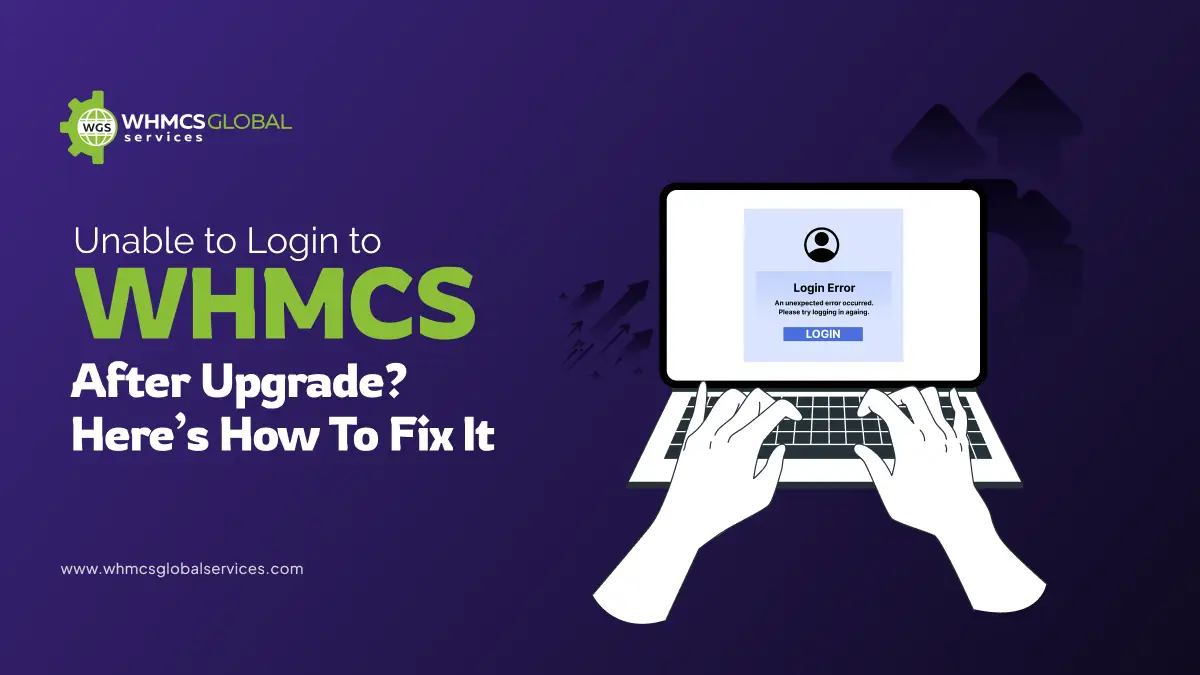
As a WHMCS user you may face issues while logging in to WHMCS after an upgrade. Common problems include incorrect login details, invalid reset link errors, unsent general emails, and other unexpected errors. In this guide, we will explain the most common issues, the reasons behind them, and how to resolve them.
What are the Common Login Errors Users Face After WHMCS Upgrade, What are their Reasons?
Here is the list of common issues, with their problem cause and error messages, that you may face while logging in to WHMCS after upgrading:
| Common Errors | Problem | Error | Reason of Errors | How to Fix |
| Login Details Incorrect | Many users face the login details incorrect error, when they try to log in to the client area, they witness errors. | Login Details Incorrect. Please try again. | The main reason for this error is that the URL used for logging in, by the users, is not the correct WHMCS System URL. This often happens when users install their first SSL certificate on their WHMCS installation, or most likely after moving to a new domain or directory. | Click for Quick Solution |
| Invalid Reset Link Errors | Some users face trouble in resetting their passwords. When users click on “Reset Your Password” in the “Password Reset Validation Email,” an error is displayed to them. | The reset link you have followed is invalid. Please try again. | The core reason of this is that the WHMCS System URL doesn’t match the URL users used to access to access the password reset page. | Click for Quick Solution |
| Logon Failure Errors | Clients encounter various errors when working with email imports via POP3. | Can not authenticate to POP3 server
Logon failure: unknown user name or bad password Password command failed Too many login failures |
It can be caused if user entered an invalid username or password in their support department email importing configuration. Or the mailserver has blocked (blacklisted) the users. Even when users are using an authentication method that your POP mailbox does not support. | Click for Quick Solution |
| Missing Username Errors | Users can experience errors while provisioning an account on a cPanel & WHM or WP Squared server. | No user name supplied: “username” is a required argument | This error indicates that the username under the client’s Products or Services tab is empty. | Click for Quick Solution |
| Invalid Details Error | Clients can face error or issues while attempting to authenticate with WHMCS using Facebook, Google, or Twitter Sign-In Integrations. | Invalid details not saved. Please verify your details and try again. | This issue may occur due to invalid Facebook, Google, or Twitter API credentials. Sometimes Twitter callback URL is also invalid or may be due to problem in your Authorized JavaScript Origins configuration. | Click for Quick Solution |
| Single Sign-in on Closed User Errors | Sometimes users face error while attempting to use WHMCS single sign-on to authenticate. | Single Sign-On authentication denied for “Closed” User ID: xx | This error occurs when the client account has a closed status, which prevents single sign-on access. WHMCS requires the client status to be Active or Inactive to perform single sign-on authentication. | Click for Quick Solution |
| Single Sign-in on Configuration Errors | Similarly, users face issues while using WHMCS single sign-in to authenticate. | Single Sign-On authentication denied per configuration for User ID: xx | The user may encounter this error when single sign-on access is disabled in the client’s security settings. | Click for Quick Solution |
| Google Sign-in Unavailable Errors | Users can witness errors while attempting to authenticate with WHMCS using Google Sign-In Integrations. | Google Sign-In is unavailable at this time. Please try again later Google Sign-In is unavailable at this time. Please try again later. Error: Not a valid origin for the client: http://example.com has not been whitelisted for client ID xxxxx | This issue often occurs when Authorized JavaScript Origins and Authorized redirect URIs settings in your Google app are no longer valid, or Google did not access WHMCS from the correct URL. | Click for Quick Solution |
How to Resolve These Issues?
Every issue or error has different method of resolving; you can follow the below mentioned steps to resolve the issue occurring:
1. How to Fix “Login Details Incorrect” Error in WHMCS?
Firstly, you must ensure that the URL matches the WHMCS System URL setting in the General tab at Configuration > System Settings > General Settings.
You can update their system URL settings by following these steps:
- Navigate to Configuration > System Settings > General Settings.
- In the General Tab, choose the correct system URL.
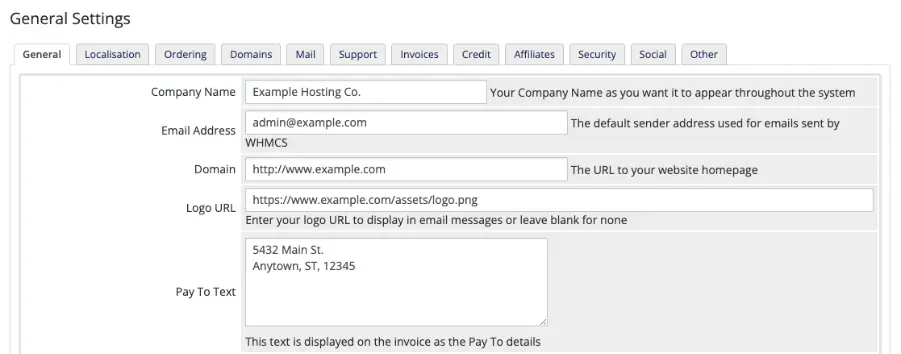
- For Example: if example.com uses an SSL certificate and the WHMCS installation is in the WHMCS directory, the system URL would be https://www.example.com/whmcs/.
- At last click Save changes.
WHMCS often stores sensitive data that passes between WHMCS and end user’s browsers. In order to ensure encrypted information, having a solid SSL certificate is essential.
To enable SSL certificate on WHMCS, one needs to follow these steps:
- Obtain an SSL Certificate: If you don’t have an SSL certificate, you can buy it from the provider.
- Install the Certificate: Configure the certificate on the domain that WHMCS hosts. The process will vary according to the hosting panel you use.
- Update WHMCS Settings: Update the WHMCS System URL setting.
- Save: Click on save changes.
2. How to Fix “Invalid Reset Link” Error in WHMCS?
To resolve this issue, make sure that the URL matches the WHMCS System URL setting in the General tab at Configuration > System Settings > General Settings. If not, then update the system URL setting and enable SSL. Additionally, the process for fixing an invalid reset link is the same as correcting incorrect login details.
3. How to Fix “Logon Failure” Error in WHMCS?
Logon failure error in WHMCS can occur due to various reason. To resolve these reasons, follow these steps:
For Invalid Username or Password:
Here is the step-by-step guide to resolve this issue:
- First of all, ensure that WHMCS is using the correct username and password for your email account.
- Click Edit at Configuration > System Settings > Support Departments.
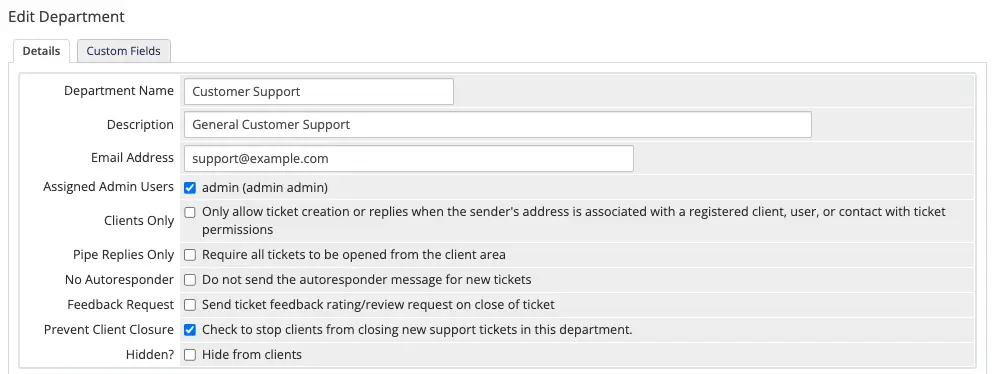
- Update your Email Address and Email Pass in the Mail Importing Configuration section.
- Ensure that the port and hostname in your configuration are correct.
- Click Save Changes.
For Mailserver Blocking/Blacklisting:
- If you are encountering errors and your mail server has blocked access, you might need to wait until the block period expires.
- If you have administrative access to your mail server, consider adding the WHMCS IP address to the whitelist or manually lifting the block.
- For Google users, update your Google account settings to permit third-party apps to authenticate via username and password.
- To verify if Google has blocked WHMCS logins, visit the Recent Activity section in Gmail and search for notifications about “Suspicious sign in prevented messages”.
Unsupported Authentication Methods:
Google Email Users: To resolve the logon error issue as Google email users; you need to set up email importing with Google.
Microsoft Email Users and Other Email Users: If you cannot access a basic password authentication for POP3 with Microsoft exchange service or other email providers, they can forward emails to a regular mailbox that supports username-and-password authentication for POP3 and then import it via WHMCS.
Note: Microsoft has shutdown basic authentication since Oct 2022.
To update the POP and IMAP import mailbox setting in WHMCS, follow these basic steps:
- Click Edit at Configuration > System Settings > Support Departments.
- Update Email Address and Email Pass in the Mail Importing Configuration section.
- Click Save Changes.
4. How to Fix “Missing Username” Error in WHMCS?
To tackle this issue:
- Enter a username.
- Save the changes.
- Then run the Create command again.
Note: To prevent this issue in the future, always ensure to check the require domain for the product at:
- Configuration > System Settings > Products/Services.
5. How to Fix “Invalid Details” Error in WHMCS?
To resolve this issue:
- Check your API key and secret.
- Whereas if you are using twitter. Then check your callback URL and then try it again.
- You should also need to check your Authorized JavaScript Origins configuration.
- Make sure the entered value must match the WHMCS System URL value at Configuration > System Settings > General Settings without the WHMCS installation directory and trailing slash.
- For example, if WHMCS System URL is https://example.com/whmcs/, you must use https://example.com.
6. How to Fix “Single Sign-in on Closed User” Error in WHMCS?
Follow these steps to resolve the error:
- Go to the Profile tab of the client’s profile.
- Update Status from Closed to either Active or Inactive.
- Click Save Changes.
- Make sure the entered value must match the WHMCS System URL value at
7. How to Fix “Single Sign-in on Configuration” Error in WHMCS?
The client needs to re-enable single sign-on in their security settings, they need to follow these steps:
- Log in to the WHMCS Client Area.
- Go to Account > Security Settings.
- Now enable single sign-on.
- Then save the changes.
8. How to Fix “Google Sign-in Unavailable” Error in WHMCS?
To solve this issue, check the Authorized JavaScript Origins and Authorized redirect URIs setting in the Google. Make sure the valid URIs begin with https:// and have an active SSL certificate.
What are the Things to Remember While Login After Upgrading Your WHMCS?
To prevent complications during your WHMCS upgrade, complete these essential prep steps. Whenever feasible, have the WHMCS support team manage the upgrade process for you.
Here are the Essential Preparation Steps:
1. Examine Release Notes: Review the release notes for the upcoming version, including any versions in between if you are jumping ahead (for instance, upgrading from 8.11 to 8.13 requires checking 8.12 notes as well). These notes detail fresh features, modifications, discontinued elements, and template adjustments.
2. Confirm System Requirements: Make sure your hosting environment satisfies the needs of the target version and all transitional versions. If starting from outdated End-of-Life (EOL) releases.
3. Review Your Modifications:
- Store personalized themes and order form templates in dedicated directories (since updates replace the standard ones).
- Scan the release notes for language string updates and adjust your custom wording accordingly.
- Employ Git to handle custom themes and templates, release notes include links to GitHub repositories showing the differences.
- For minor adjustments like language phrases, WHOIS server updates, or country/calling code changes, opt for “override files” rather than altering main files.
4. Run Tests on a Staging Site: Build a duplicate of your production environment as a testing setup to simulate the update and spot any unique issues. If your license is purchased straight from WHMCS, request a complimentary development/testing license from their Customer Service.
5. Create Full Backups: Prior to the update, save copies of your complete WHMCS folder and database. This helps you to restore quickly if issues arise.
6. Validate MySQL Access Rights: Ensure that your MySQL database user has complete privileges (like creating and modifying tables) throughout the update procedure.
How to Perform the Updates after Preparation?
After completing preparations, select one of these approaches:
Automatic Updater (Preferred Option): Navigate to Utilities > Update WHMCS within the admin panel. This tool automatically detects available updates, fetches the files, verifies integrity, unpacks them, and applies database changes.
Command Line (Manual for Experts): Manually prepare the update files, then execute the install.php script through the terminal.
Browser (Manual): Transfer the update files to your WHMCS directory, then access yourdomain.com/whmcs/install/install.php (replace with your actual domain) and proceed with the guided prompts.
Conclusion
Upgrading WHMCS may trigger login issues like incorrect details or invalid links, often due to URL mismatches, misconfigurations, or skipped preparations, but they are easily resolvable by verifying your System URL, enabling SSL, and troubleshooting emails or integrations. Always review release notes, test on a staging site, and back up everything beforehand to avoid disruptions. If challenges persist, contact WHMCS support for tailored help to get back online swiftly. Additionally, apart from login errors if you face any issue related to WHMCS Themes and Modules you can connect with WGS support. Our team provides 24/7 assistance to ensure smooth operations and uninterrupted business performance.